How to Read Your Link Reports in CARL
CARL's link reports show you exactly what's happening with every tracked link on your site: how many clicks each link received, where those clicks came from, which countries they originated in, and how performance breaks down across your link groups. Everything is filterable by date range, so you can isolate any period you need.
Accessing the Reports
In the CARL admin panel, go to Link Tracker and click the Reports button in the top bar. The reports page opens with a default date range applied. You can adjust the from and to dates to cover any period, filter by a specific link or link group, and choose whether to include bot clicks in the totals. Bot clicks are excluded by default because they inflate the numbers without reflecting real visitor interest.
The Summary Panel
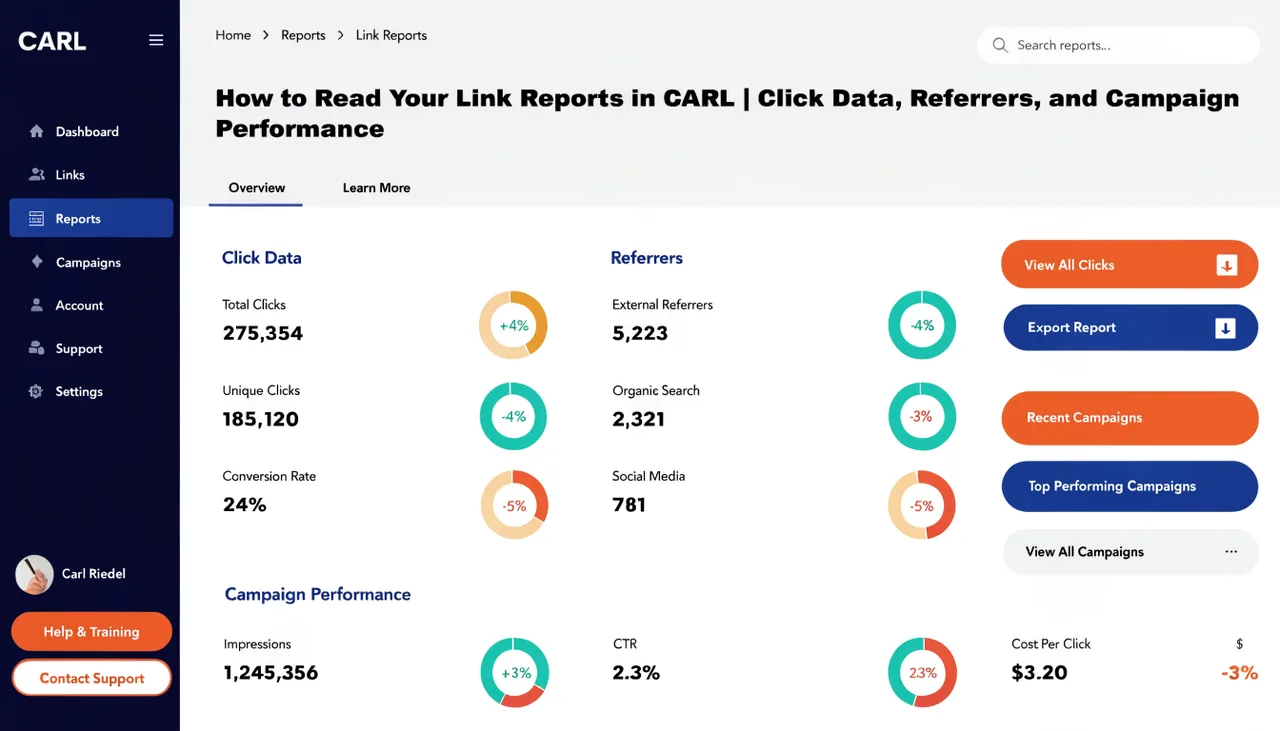
At the top of the reports page, a summary shows total clicks, human clicks, bot clicks, and unique IPs for the selected period and filters. Human clicks are the number you should focus on. Unique IPs give you a rough sense of how many distinct visitors clicked, since the same IP clicking multiple times counts once in that figure.
Clicks Over Time
Below the summary, a chart plots daily click totals across your selected date range. Gaps in the chart are genuine zero-click days, not missing data. Use this view to spot spikes after a new article goes live, a social post gets traction, or a campaign starts sending traffic. Flat lines between spikes tell you which links are passive earners versus which ones need fresh promotion.
Per-Link Breakdown
The per-link table ranks every link by human clicks for the selected period. Each row shows the link label, short code, redirect type, group, total clicks, human clicks, unique IPs, and the timestamp of the last click. Links with zero clicks during the period still appear in the table, making it easy to identify links that have gone cold and may need attention.
Referrers and Countries
The referrers breakdown shows the top sources sending clicks to your tracked links, so you can see whether traffic is coming from organic search, direct visits, social referrals, or specific pages on your own site. The countries breakdown shows where your clickers are located by country code. Both tables are limited to the top 20 results for the selected period.
Exporting the Data
The export function on the reports page downloads the full click log for the selected filters in CSV format. Each row contains the click timestamp, link label, short code, redirect type, group name, referrer, country code, user agent, and a bot flag. Use the export when you want to analyze the raw data in a spreadsheet or cross-reference click activity against your affiliate network's own reporting.