How to Set Up Member Registration in CARL
Before visitors can register as members on your CARL site, you need to create the registration and login pages and configure the registration mode in Settings. The setup takes a few minutes and doesn't require any code.
Configure Registration Settings
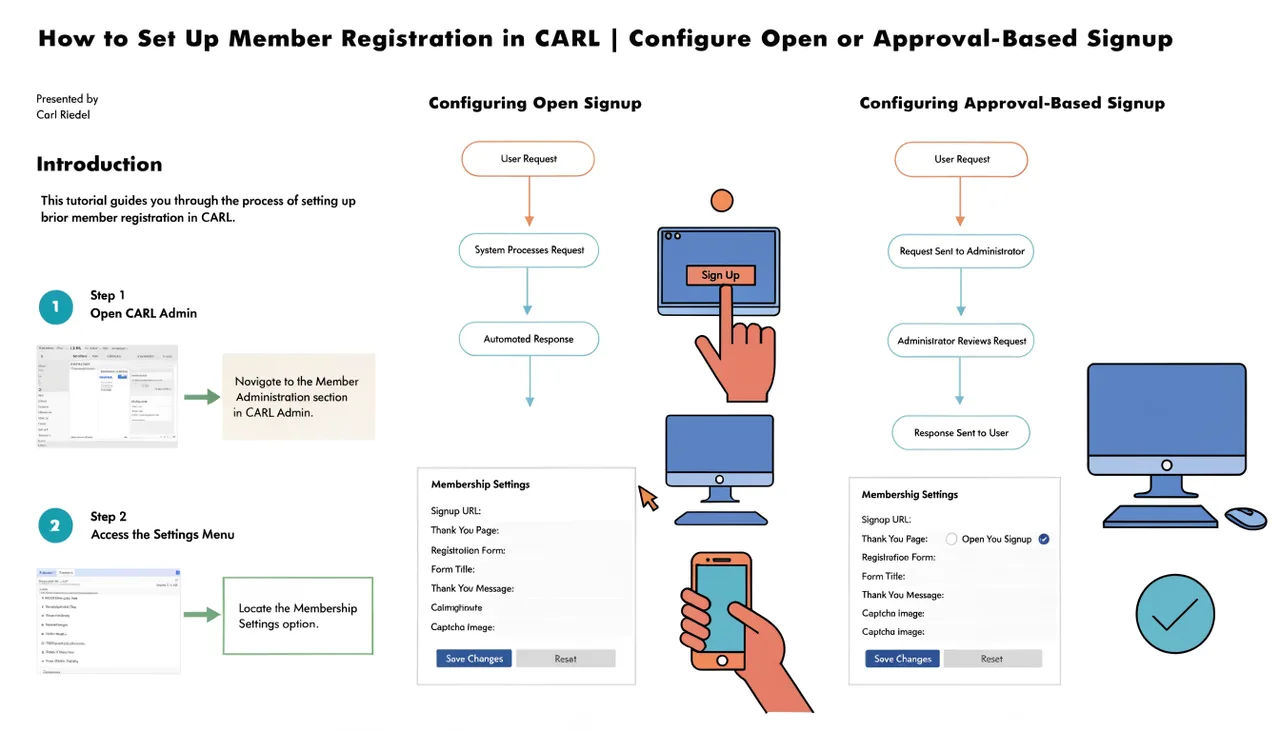
In the CARL admin panel, go to Settings and open the Members tab. The registration mode setting controls how new signups are handled. Set it to open if you want new accounts to become active immediately after registration. Set it to approval-required if you want to review and manually approve each registration before the account becomes active. You can change this setting at any time without affecting existing members.
Create Your Member Pages
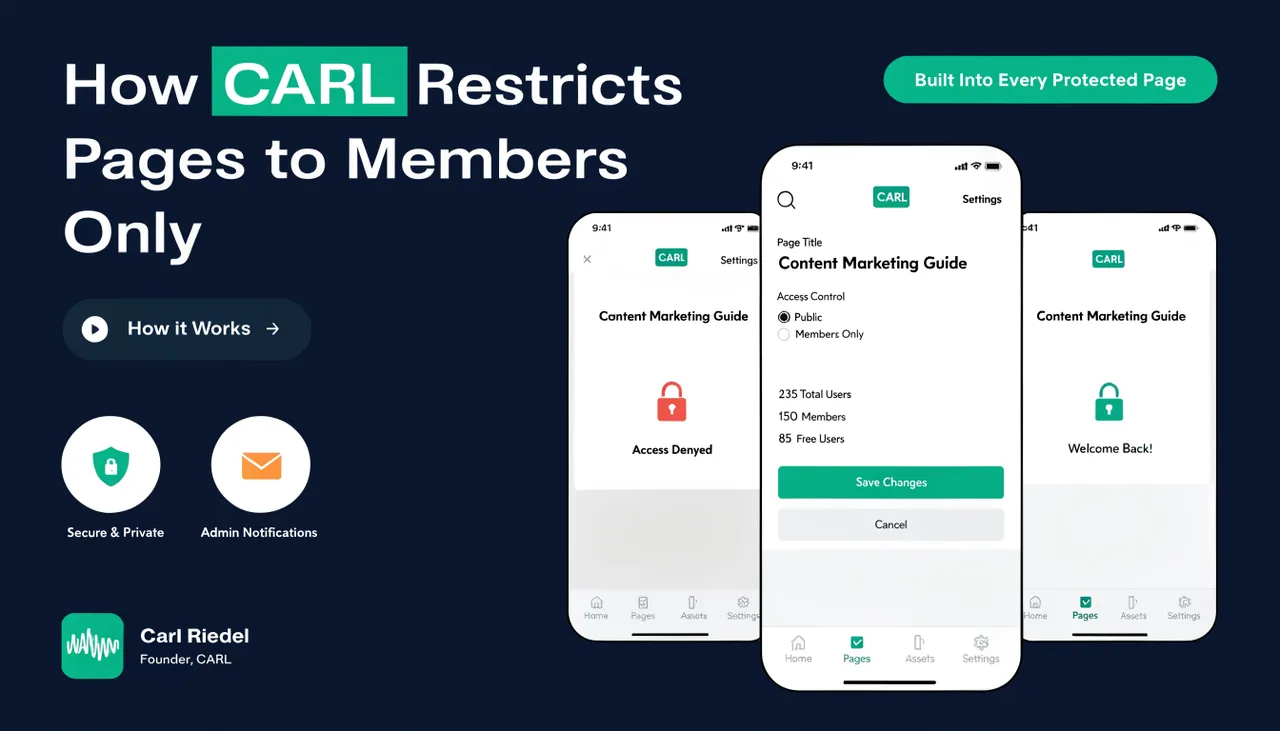
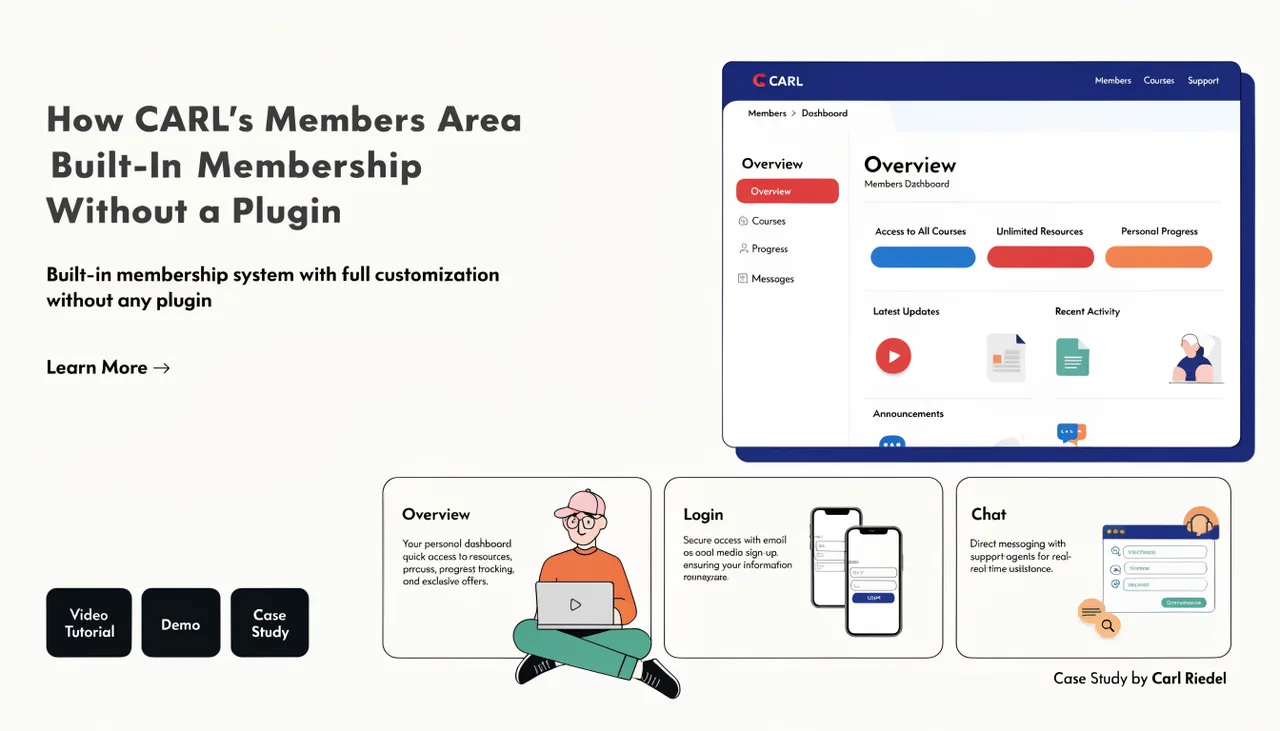
CARL's membership system requires a set of pages on your site to handle the member-facing flows. At minimum, you need a registration page, a login page, and a members' dashboard page. In the CARL admin, create these pages using the members-specific templates. The templates include the forms and logic for each step — registration, login, logout, and session handling — so there's no code to write.
The login page should be published at /members/login.php. CARL's access guard redirects unauthenticated visitors to that exact path when they attempt to reach a protected page. If you publish the login page at a different URL, update the redirect path accordingly.
Open Registration
With open registration enabled, a visitor fills out the registration form with their email, username, and password. CARL validates the input, checks for duplicate emails and usernames, creates the account with active status, sets the session cookie, and logs them in immediately. The whole process is a single form submission with no email verification step required.
Approval-Required Registration
With approval mode enabled, the registration process is the same from the visitor's side, but the account is created with pending status instead of active. The visitor sees a confirmation message telling them their account is awaiting approval. In your admin panel, go to Members and filter by the pending status to see registrations awaiting review. Click approve to activate the account, or delete it if you don't want to grant access.
Managing Members After Setup
Once registration is live, new members appear in the Members dashboard as they sign up. You can change any member's access level from free to premium at any time, suspend accounts without deleting them, and reinstate suspended accounts. If a member's email matches an existing subscriber in your email list, CARL links the two records automatically so you can see the connection between your members and your email audience.