How CARL's Backup System Works
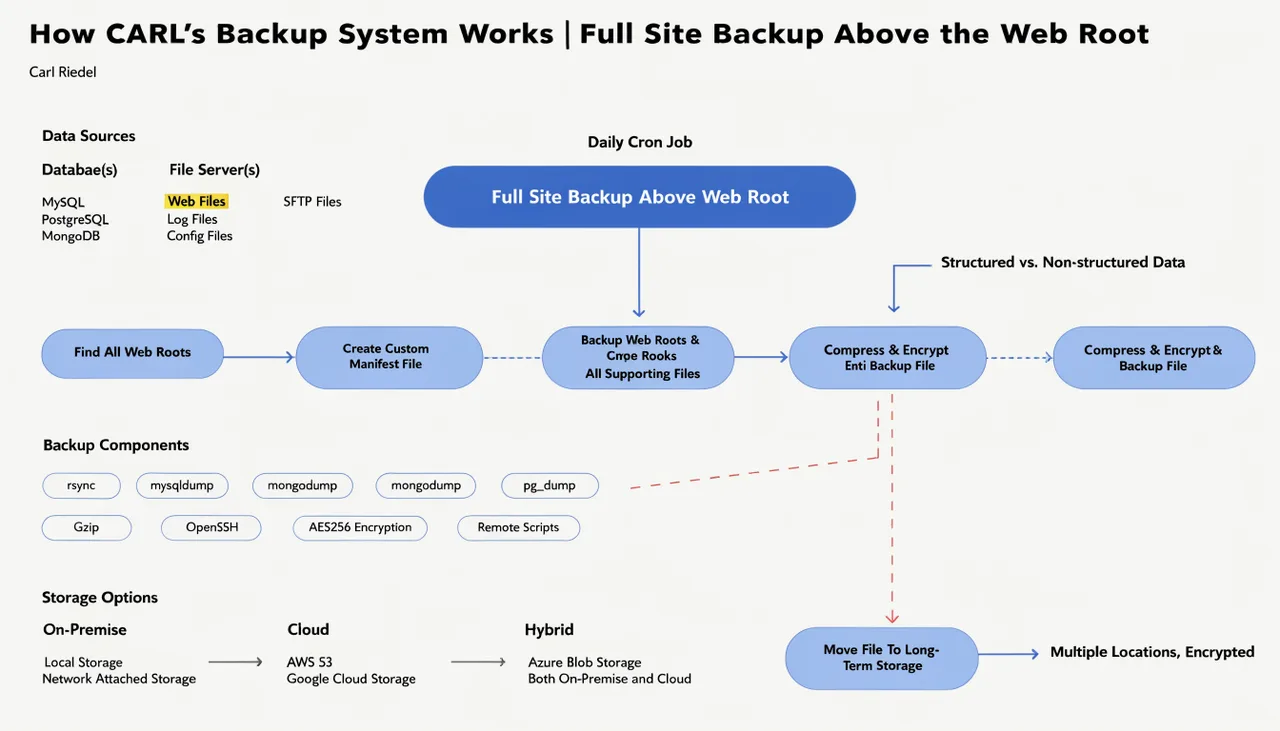
CARL's backup system creates a single ZIP file containing your site files, your database, and your secrets.php configuration. Everything your site needs to run is in one file, stored in a location that no browser can reach.
Where Backups Are Stored
Backups go above your web root, in a folder called carl-backups sitting one level above public_html. On a standard cPanel account, that means the folder is at /home/yourusername/carl-backups/. A visitor browsing your site has no URL they could use to access it. Downloads are served exclusively through the admin panel, with login required.
This is a deliberate architectural decision. Storing backups inside public_html would make them publicly accessible by URL, which is a serious security risk on any site that handles member data, purchase records, or private configuration. CARL keeps them out of the web root by default, with no configuration required on your part.
What Gets Included
When you create a backup, you can choose to include site files, the database, or both. secrets.php is always included regardless of what you select, because the site cannot connect to the database without it. A backup that contains the database but not secrets.php would be unusable during a restore.
The site files option packages everything in public_html into the ZIP under a public_html/ path prefix, excluding the backup directory itself. The database option exports every table and all data using CARL's pure-PHP export function. There's no dependency on mysqldump, which means it works on every shared hosting account regardless of whether shell access is available.
The Backup File
Each backup is named carl-backup-YYYYMMDD-HHmmss.zip, with the timestamp embedded in the filename so you always know exactly when it was created. The backup screen shows the estimated size of your site files and database before you run the backup, alongside the available free disk space. If space is tight, a warning appears before you proceed.
Large sites may take a minute or two to package. CARL extends PHP's execution time limit for the duration of the backup and keeps the process running even if the browser tab goes idle. You don't need to keep the tab in focus, but you should leave it open until the confirmation message appears.
Managing Your Backup History
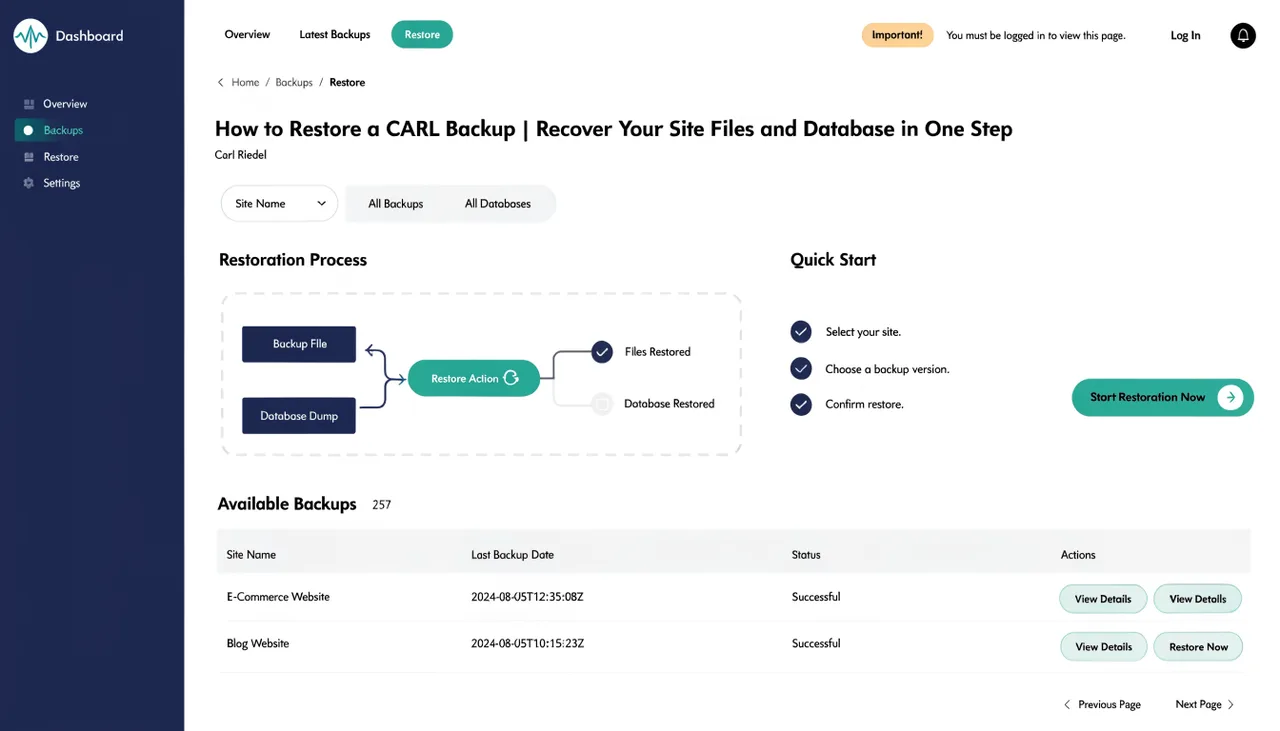
The Backup History panel lists every existing backup with its filename, size, and creation timestamp in UTC. From there you can download any backup directly to your computer, trigger a restore, or delete backups you no longer need. Backups flagged as over 30 days old are highlighted so you can decide whether to keep or remove them.
Deleting old backups regularly is good practice. Each full-site backup includes your entire public_html directory, so on a large site they accumulate disk usage quickly. Keep at least 2 recent backups on the server at any time and download a copy to your local machine or cloud storage for offsite redundancy.
Running a Backup
In the CARL admin panel, navigate to Backup. Select whether to include site files, the database, or both, then click Create Backup Now. The button disables itself during the process to prevent double submissions. When the backup completes, the new file appears immediately in the Backup History panel with its size confirmed. For how to use a backup to restore your site, see How to restore a CARL backup.