How to Restore a CARL Backup
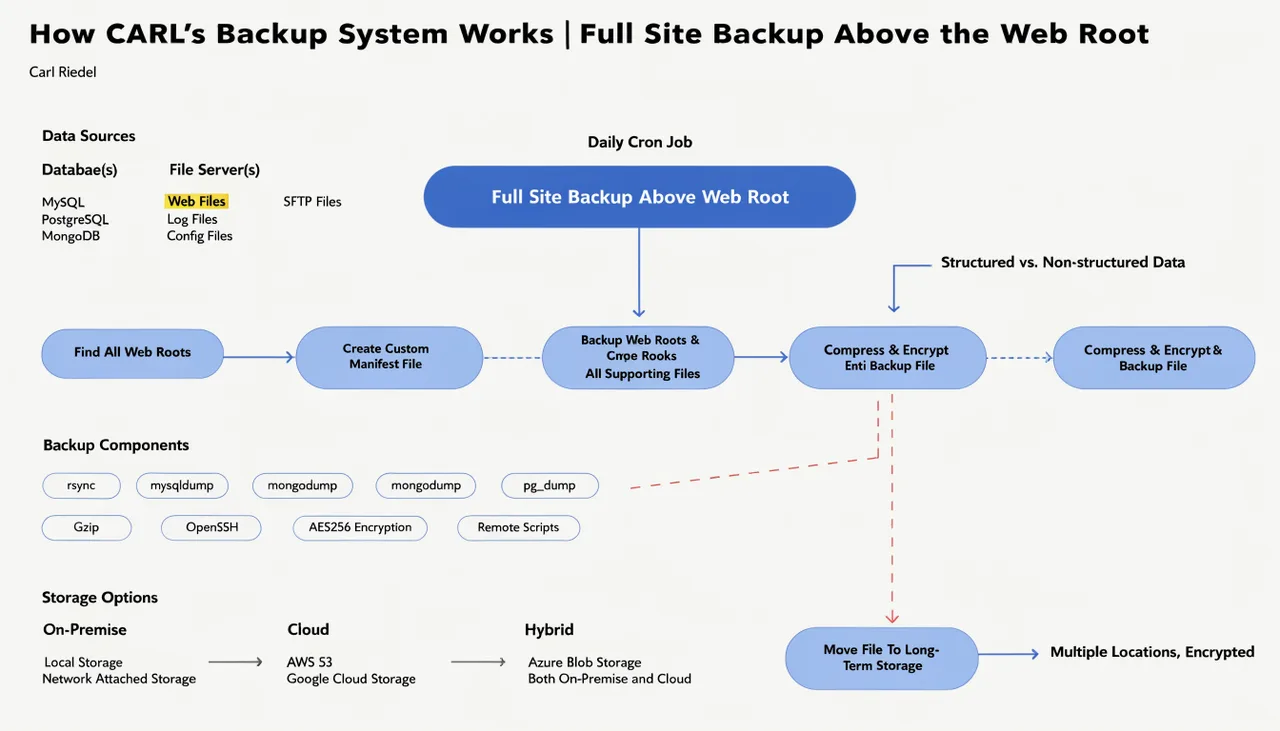
Restoring a CARL backup overwrites your current site files and database with the contents of the selected backup file. The entire process runs from inside the admin panel. You don't need shell access, FTP, or phpMyAdmin to complete a restore.
Before You Restore
A restore is irreversible. Whatever is on your server right now, including any pages published, settings changed, or purchases recorded since the backup was taken, will be replaced. If there's any chance you need that data, create a fresh backup first before triggering the restore.
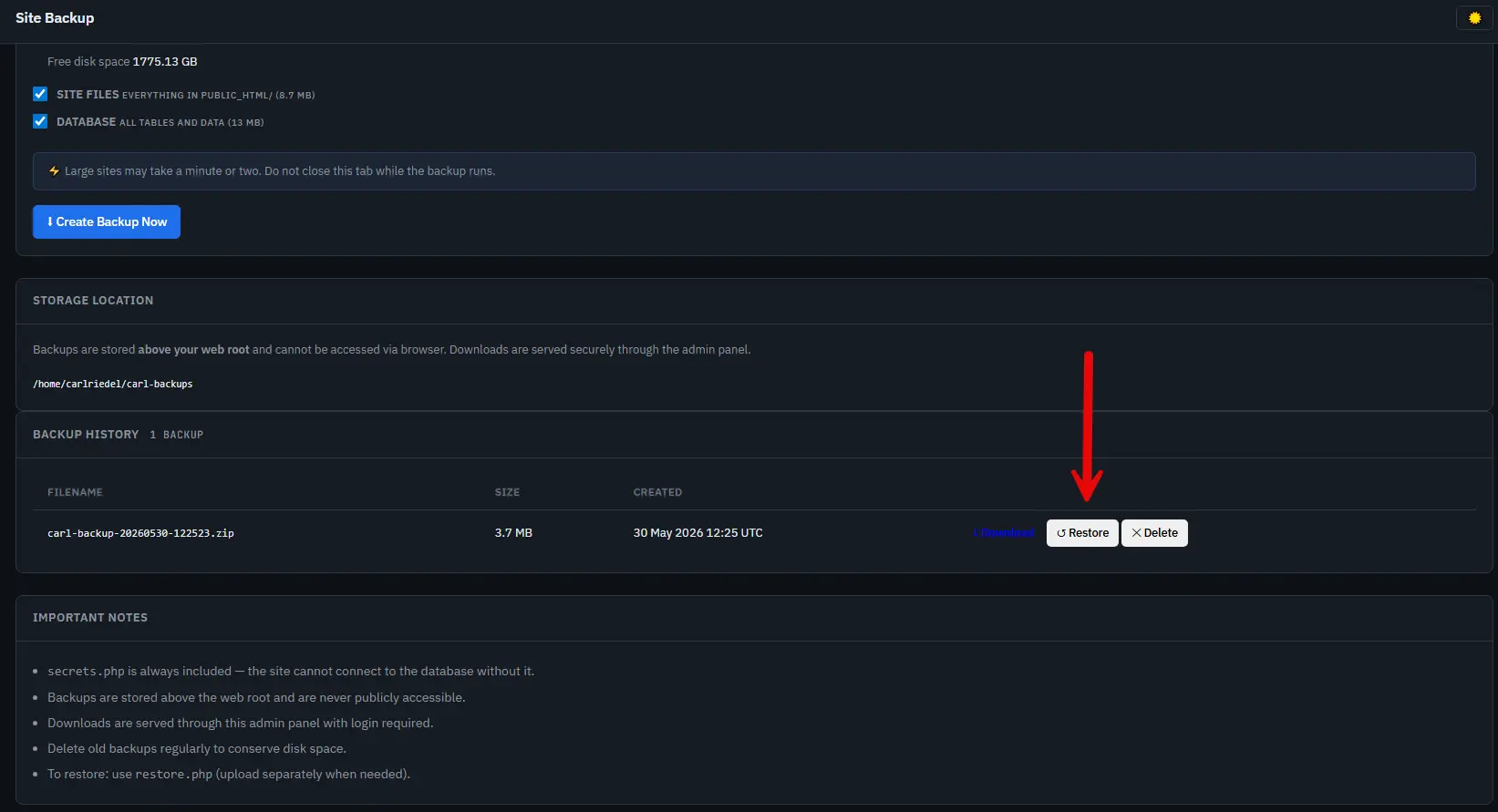
The Backup panel lets you create a new backup and restore an older one in the same session.
How to Trigger a Restore
In the CARL admin panel, go to Backup. The Backup History panel lists every available backup with its filename, size, and creation timestamp. Find the backup you want to restore and click the Restore button next to it. A confirmation modal appears showing the exact filename and creation date, along with a warning that the action cannot be undone. Click Restore Now to proceed.
The restore button disables itself once clicked and shows a progress state. Do not close the tab while the restore is running. On a large site with many files, the process may take a minute or two to complete.
What Happens During a Restore
CARL opens the backup ZIP and extracts it to a temporary directory on the server. If the backup contains a database export, CARL imports it using a direct PDO connection, running each SQL statement in sequence with foreign key checks temporarily disabled.
If the backup contains secrets.php, it is restored to its correct location above public_html and its file permissions are set to 0600. If the backup contains site files, they are copied back into public_html, recreating the original directory structure.
Once the restore is complete, the temporary directory is deleted. The confirmation message on the Backup page tells you exactly which components were restored: database, site files, and secrets.php.
If any SQL statements produced warnings during the import, those are shown as well so you can assess whether anything needs attention.
After the Restore
Your site should be fully operational immediately after the restore completes. Published pages are static PHP files that were written back to disk as part of the file restore, so visitors see the restored content without any additional steps. The admin panel reconnects to the restored database automatically on the next page load.
If the backup was taken some time ago, run a Site Health check after restoring to confirm the state of your pages and catch any issues introduced by the rollback. Any pages published after the backup date will be gone, so check your page list and republish anything that's missing.
Restoring to a Different Server
CARL backups are self-contained. If you're migrating to a new host rather than recovering from an incident, download the backup ZIP from the Backup panel to your local machine, complete the fresh CARL installation on the new server, then use the Backup panel on the new install to restore from the downloaded file. The database credentials in secrets.php will need updating to match the new server's database settings after the restore.