How CARL's Site Health Checker Works
Site Health is CARL's built-in SEO audit tool. It scans every published page on your site, checks each one against a set of SEO and content quality criteria, and surfaces anything that needs attention.
Missing meta descriptions, canonical mismatches, pages without schema, titles that are too long or too short: Site Health finds them and lists them so you can fix them without having to open every page individually.
What Site Health Checks
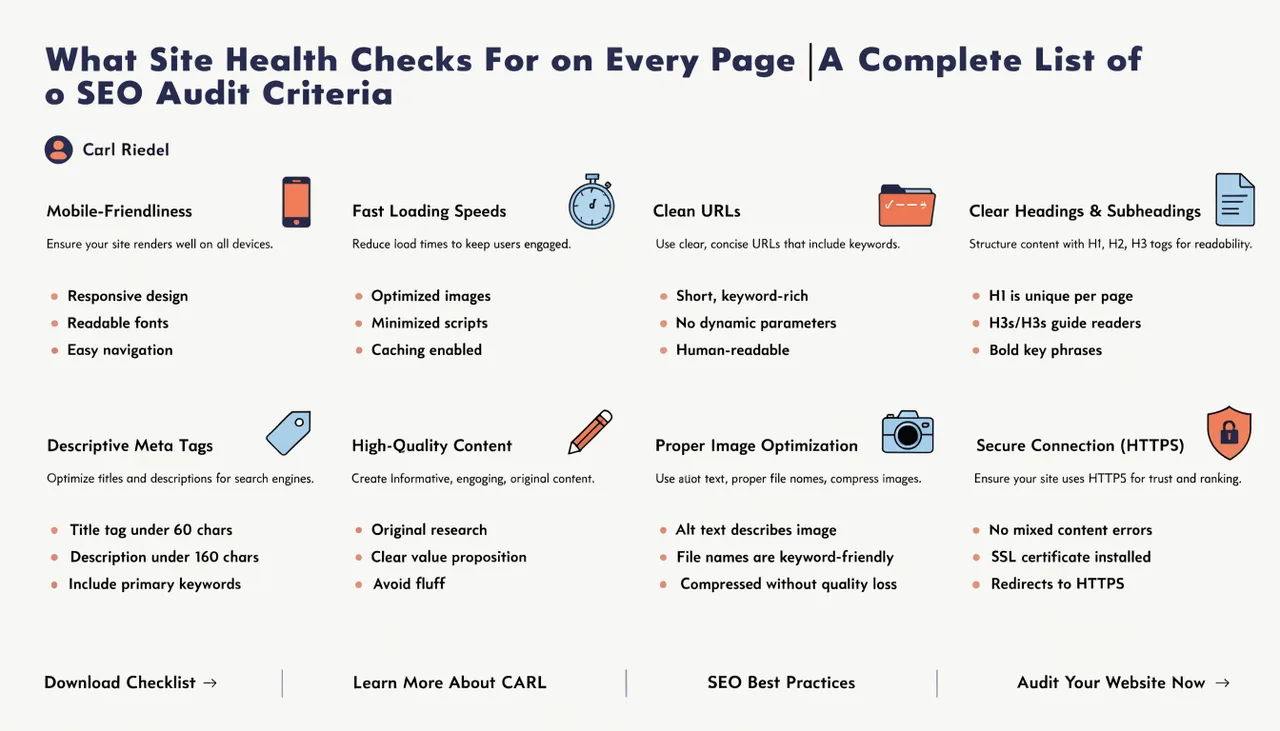
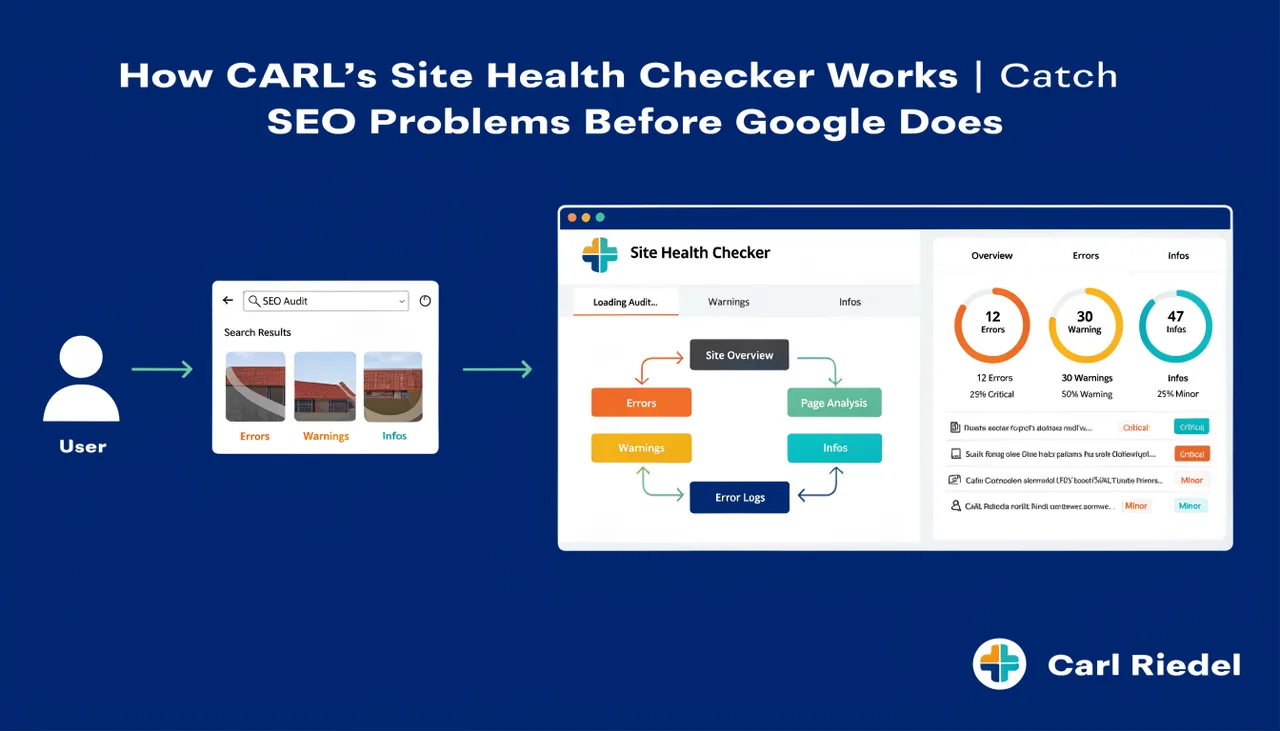
Site Health runs through a checklist on every published page. It checks for the presence and length of the page title, the meta description, and the H1. It verifies that a canonical tag is present and that the canonical URL matches the page's actual URL. It checks whether the Head Injection field contains content and flags pages where Generate Schema hasn't been run. It also checks for pages that have been edited in the database but not regenerated, meaning the disk file is out of sync with the current record.
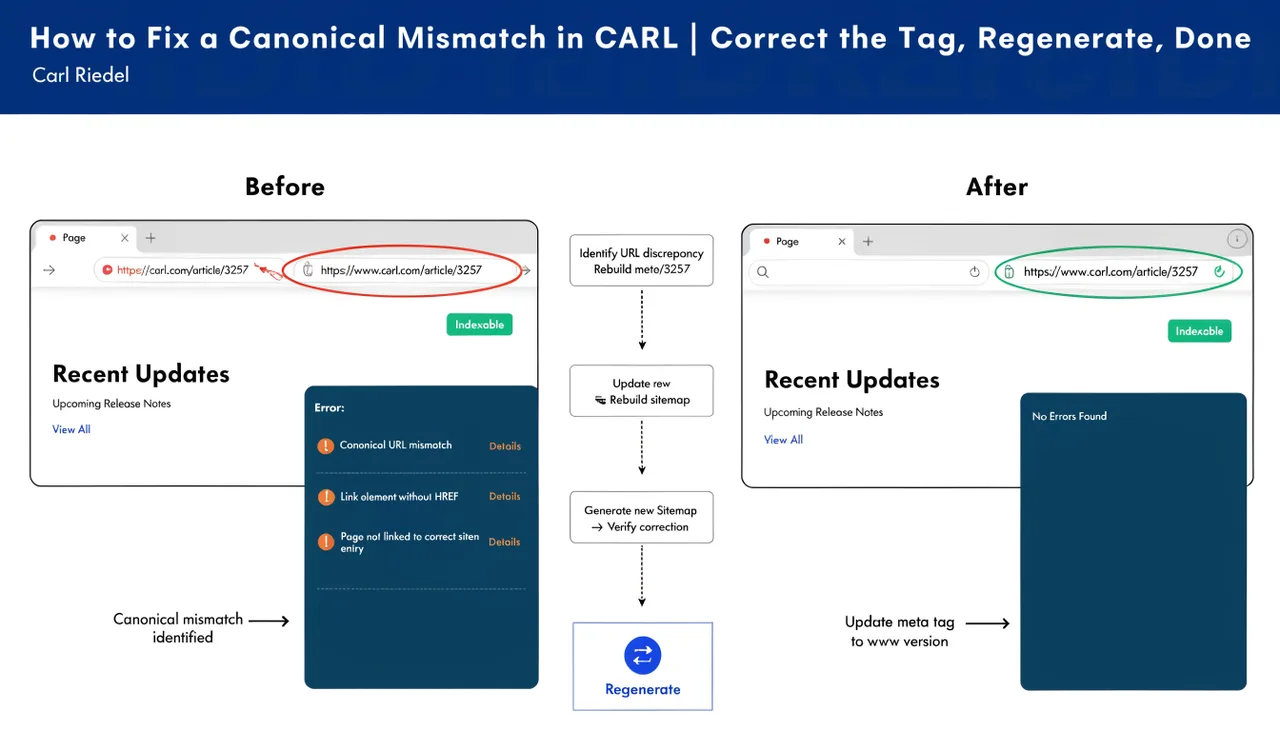
The checks cover the most common SEO issues that accumulate on a site over time: pages published before the Generate Schema workflow was established, pages where the slug was changed without updating the canonical URL, and pages where the meta description was left blank because the content felt self-explanatory at the time. Site Health finds all of them in one pass.
How to Run a Site Health Check
In the CARL admin panel, navigate to Site Health. Click the audit button, and CARL works through every published page record, running each check in sequence. The results appear as a list of pages with issues, grouped by issue type. A page can appear in multiple groups if it has more than one problem. Pages that pass all checks don't appear in the results, so the list shows only what needs attention.
On a large site, the audit takes a few seconds longer than on a small one, but it runs entirely on the server. You don't need to keep the tab active while it processes. The results stay available in the admin until you run the next audit.
Acting on the Results
Each flagged page in the results links directly to that page's editor. Click through, fix the issue, run Generate Schema if the page needs a head block, and regenerate. For pages flagged as out of sync between the database and the file on disk, the fix is a regeneration with no other changes needed. For pages with missing or oversized titles and descriptions, you'll need to edit the content or the Head Injection field before regenerating.
For issues that affect a large number of pages at once, such as a batch of pages published without running Generate Schema, the most efficient approach is to open each one, run Generate Schema, save, then use bulk regenerate to push all the updates to disk in a single pass rather than regenerating each page individually.
Running Site Health Regularly
Site Health is most useful as a regular check rather than a one-time fix. Run it after any batch of new pages to confirm everything was published correctly. Run it after a template change and bulk regenerate to verify no pages were missed. Run it periodically on a mature site to catch any drift that's accumulated since the last audit.
The issues Site Health finds aren't catastrophic individually, but they compound. A site where half the pages are missing schema, a quarter have canonical mismatches, and a handful have titles Google is rewriting because they're too long is a site leaving ranking signals on the table. Site Health keeps the baseline clean so those signals go where they should.