How to Add a Favicon in CARL
A favicon is the small icon that appears in browser tabs, bookmarks, and search results next to your page title. It's a minor detail that makes a site look finished and professional. Adding one in CARL takes about two minutes: you prepare the icon file, upload it to your server, and add the reference tag to your template. Every page CARL generates from that template will automatically include it.
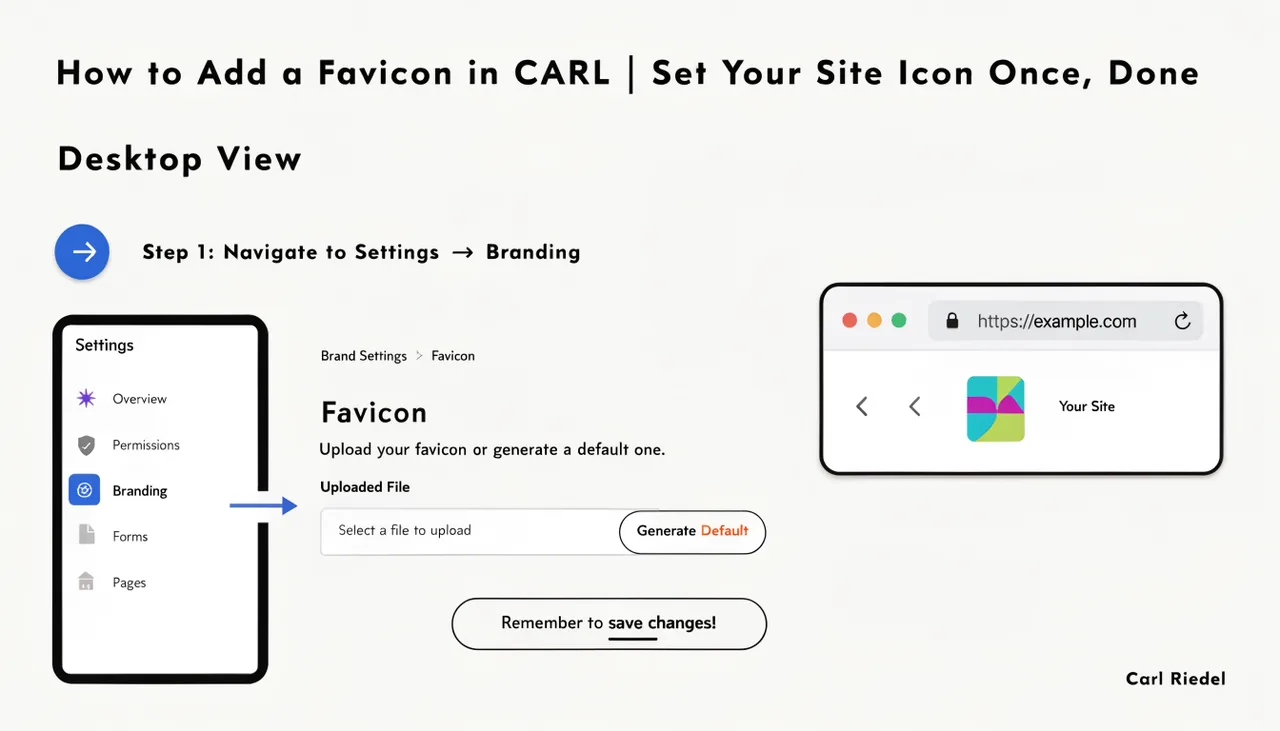
Preparing Your Favicon File
The most widely supported favicon format is a 32x32 pixel PNG file named favicon.png, or an ICO file named favicon.ico. Modern browsers also support SVG favicons, which scale cleanly at any size. For maximum compatibility across browsers and devices, a 32x32 PNG is the simplest choice. If you also want a larger icon for iOS home screens and Android bookmarks, prepare a second file at 180x180 pixels for the Apple Touch Icon.
Keep the design simple. A favicon is tiny. A detailed logo that looks sharp at full size becomes an unreadable smudge at 32 pixels. Use a simplified version of your logo, a single letter, or a distinctive symbol that reads clearly at small sizes.
Uploading the File
Upload your favicon file to the root of your domain's public_html/ directory. Placing it at the root means browsers can find it automatically even without an explicit link tag, but adding the link tag in your template is still best practice. Upload via cPanel's File Manager or any FTP client. The file should be accessible at yourdomain.com/favicon.png once uploaded.
Adding the Tag to Your Template
Open your site's template file and add the favicon link tag inside the section. For a PNG favicon, the tag looks like this:
If you're also adding an Apple Touch Icon for mobile home screens, add a second tag:
Save the template. The tags are now part of the template structure that CARL uses when generating pages. Every page using that template will include the favicon reference in its from the next regenerate onward.
Pushing the Change to Published Pages
Adding the tag to the template doesn't update pages that are already on disk. Those files were generated before the template change and don't yet contain the favicon tag. Run bulk regenerate to push the updated template across every published page in one pass. After the regeneration completes, every page on your site will have the favicon tag in its head section.
Checking It Works
Open any published page in a browser and look at the tab. Your favicon should appear next to the page title. If it doesn't show immediately, do a hard refresh: browsers cache favicons aggressively and sometimes hold onto an old version or a blank state for longer than you'd expect. In Chrome, you can force a favicon refresh by opening DevTools, going to the Application tab, finding the favicon in the cache, and clearing it. A full browser cache clear also works.
Once the favicon is showing correctly in one browser, check it in another to confirm it's not a caching issue. If it's missing in all browsers after a hard refresh, double-check that the file is at the correct path on your server and that the link tag in the template points to the right filename and extension.