How Selling Digital Downloads Works in CARL
Selling a digital product from your CARL site doesn't require a third-party storefront, a monthly subscription to a delivery platform, or a percentage cut going to a middleman. The Downloads Module handles the entire process: product catalog, PayPal checkout, secure file delivery, and purchase history, all running directly on your server.
This page walks through how the whole system fits together, from the moment a buyer lands on your product page to the moment they download their file.
The Product Page
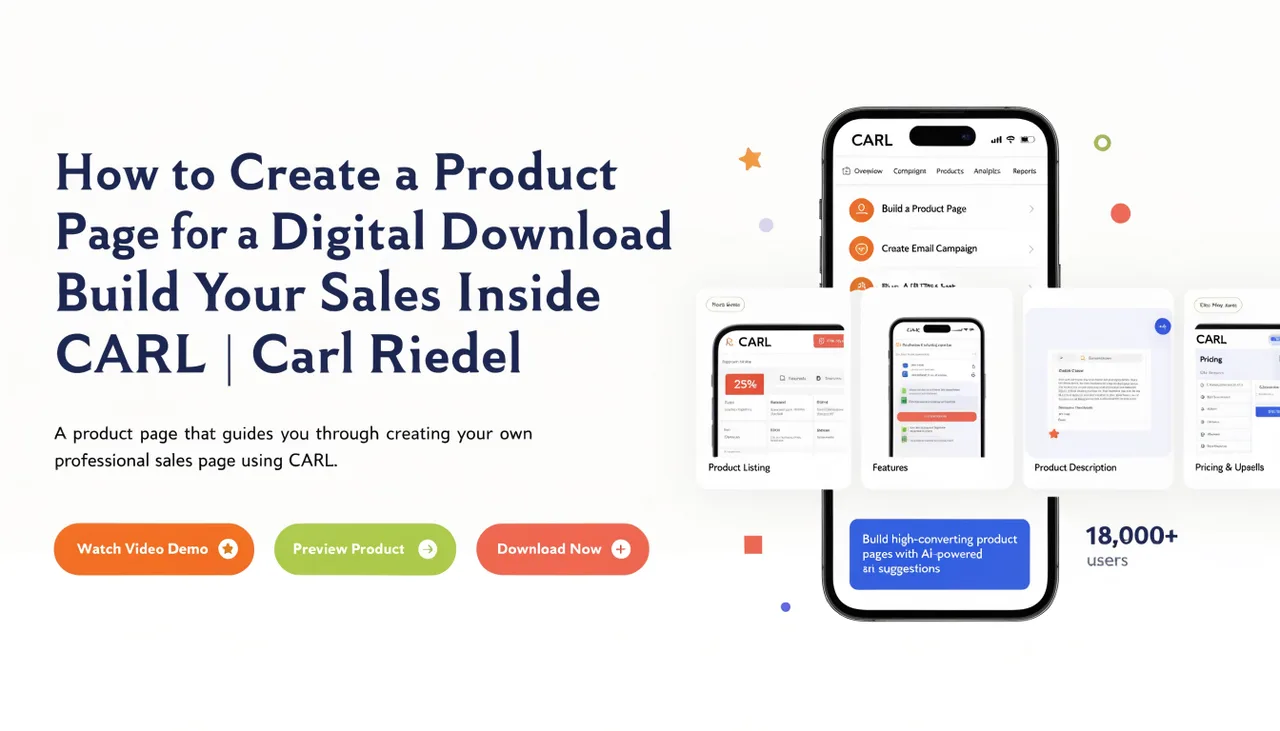
Each product you sell gets its own page on your CARL site, built using the download-product template. The page pulls the product details from your database in real time: the name, price, currency, description, file type, file size, download limit, and the duration the download link remains valid after purchase.
The product renderer also automatically renders the PayPal buy button using your PayPal Client ID from Settings. The buyer sees your product, your price, and a clean checkout button. Everything happens on your domain. There's no redirect to a storefront you don't control.
The Payment
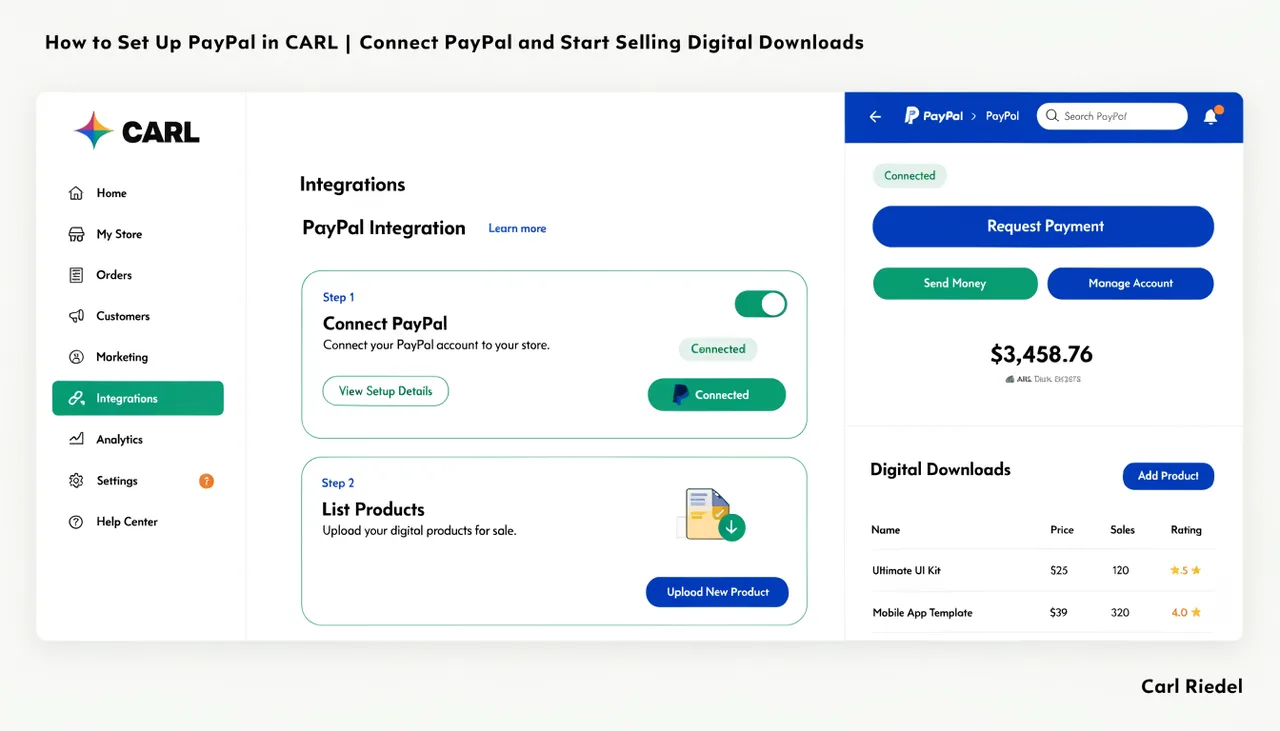
When the buyer clicks the PayPal button, PayPal's native checkout opens. The buyer pays using their PayPal balance, a linked card, or a bank account. CARL doesn't handle payment card data at any point. PayPal processes the transaction entirely on its end.
The price and currency displayed on the page are exactly what gets charged. The product's currency setting controls this, with a fallback to the global PayPal currency you set in Settings. There are no surprises at checkout.
The Webhook
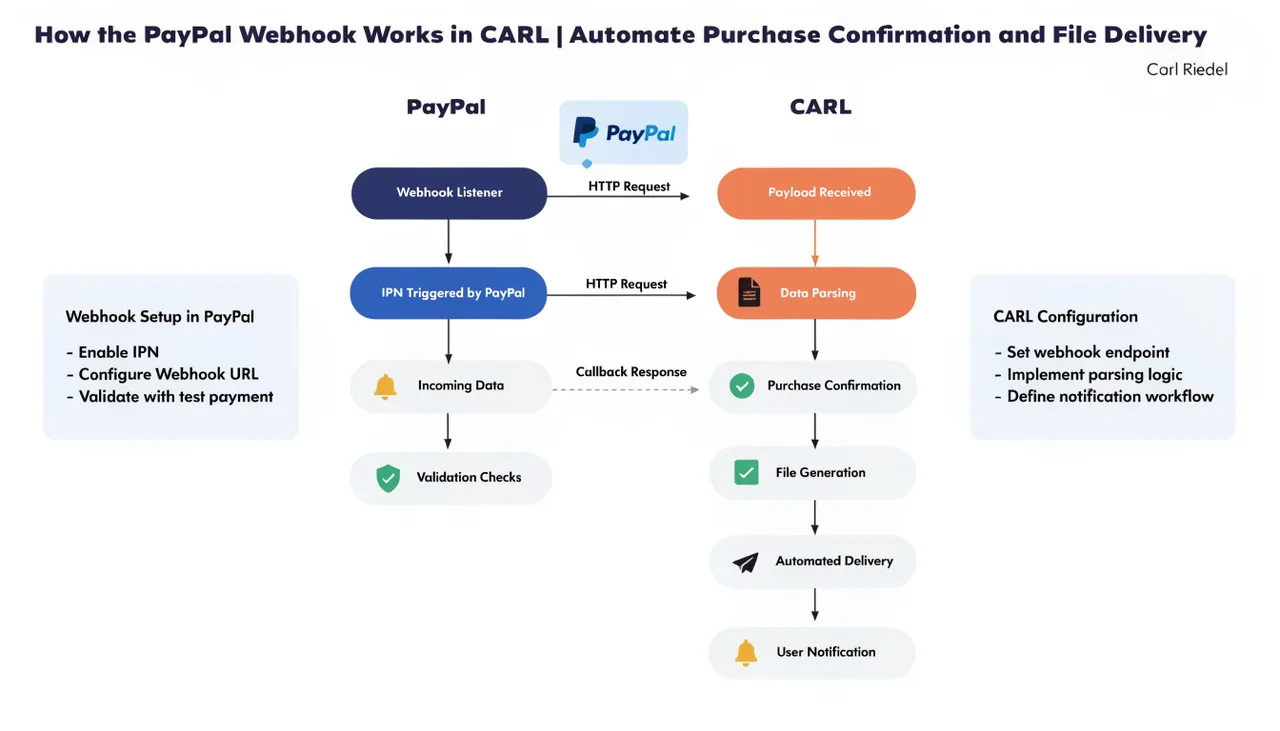
When PayPal confirms the payment, it fires a PAYMENT.CAPTURE.COMPLETED event to a webhook listener running at /admin/modules/downloads/webhook.php on your server. This is the trigger that sets everything in motion on CARL's side.
The webhook handler verifies the event, extracts the product ID embedded in the PayPal order, and runs an idempotency check to ensure the same order isn't processed twice. If everything checks out, CARL moves immediately to delivery.
The Download Token
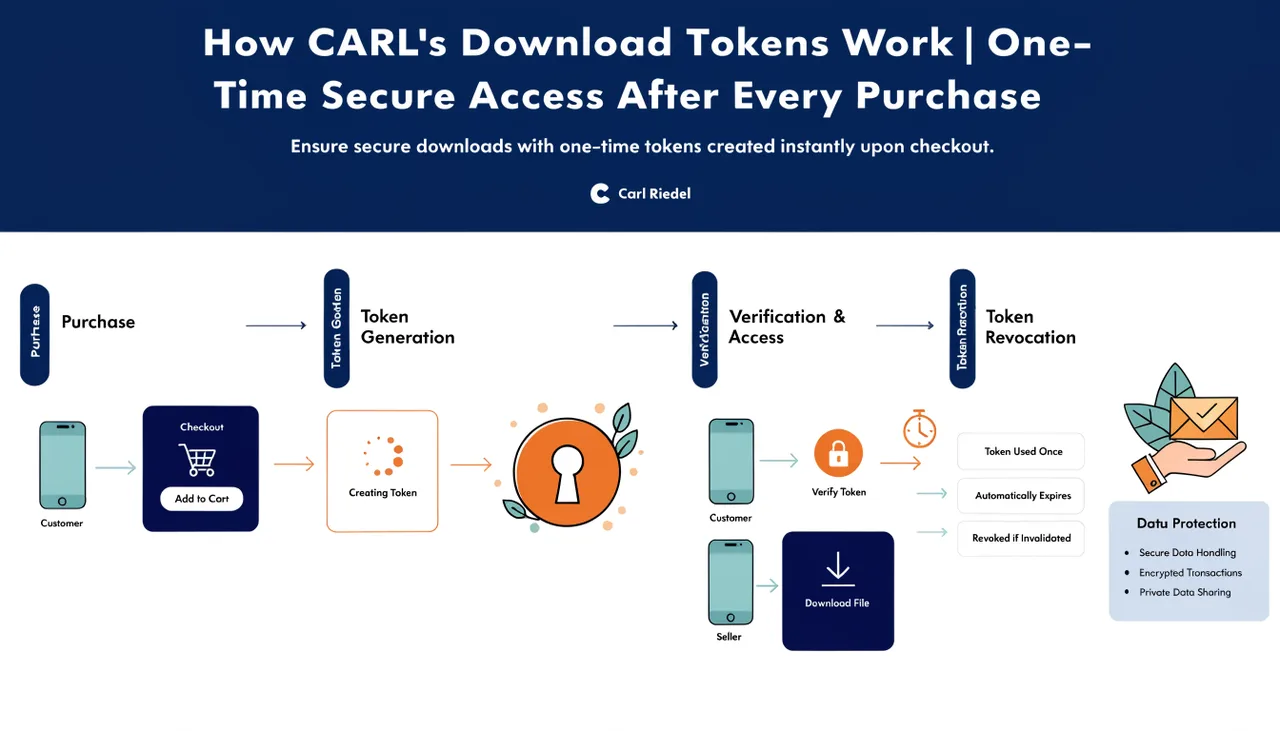
CARL generates a secure download token: a 64-character random hexadecimal string produced by PHP's random_bytes() function. This token is tied to the specific product, stamped with an expiry time, and given a download counter starting at zero.
The token is stored in the download_tokens table alongside the buyer's details and the PayPal order ID. It cannot be guessed. It cannot be reused beyond the download limit you set. Once it expires, it stops working entirely.
The Confirmation Email
As soon as the token is created, CARL sends the buyer a confirmation email containing their download link. The link follows this format:
https://yourdomain.com/admin/modules/downloads/deliver.php?token=XXXX
The email also tells the buyer how many times the link can be used and when it expires. Delivery is immediate. By the time the buyer closes the PayPal confirmation screen, the email is already on its way.
The File Delivery
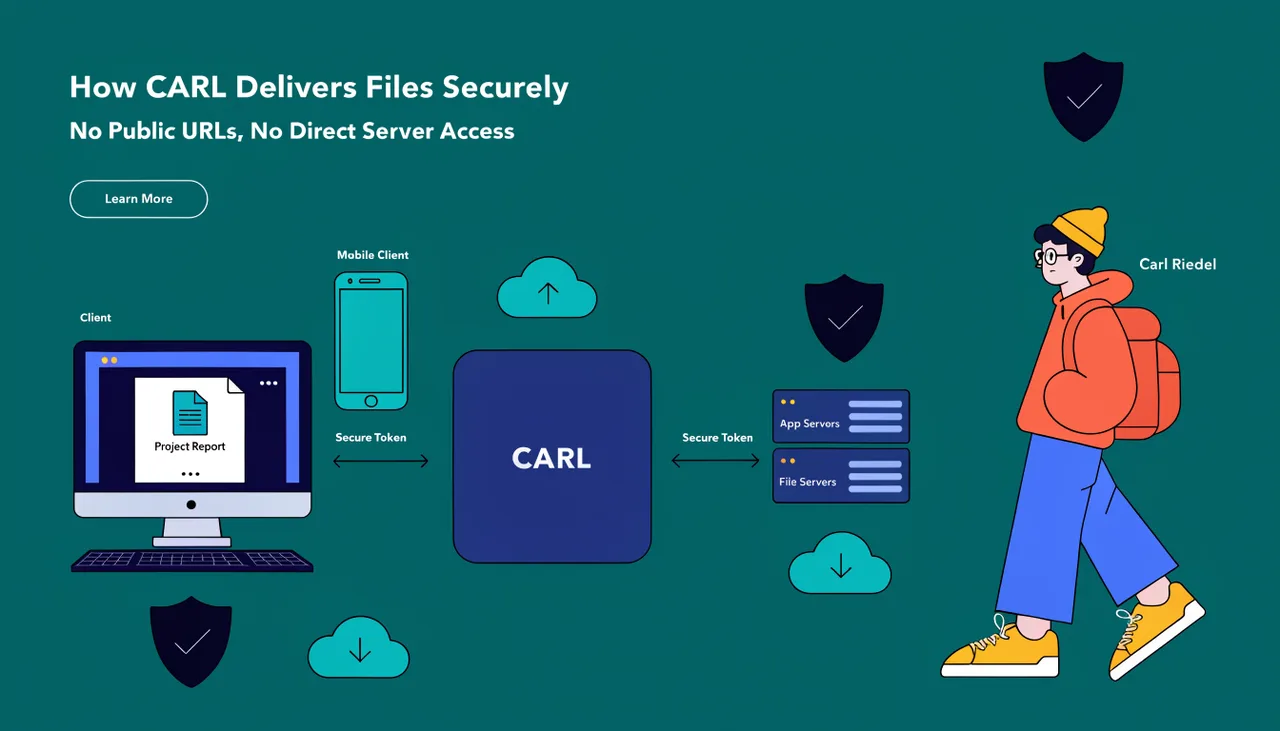
When the buyer clicks their download link, CARL's delivery script validates the token, checks the expiry timestamp, and checks the download count against the limit. If everything is valid, CARL streams the file directly to the browser.
The file itself is stored above public_html, in a folder called carl-downloads that sits entirely outside your web root. It cannot be accessed by a direct URL. The real file path is never exposed to the buyer. The only thing they see is the token URL, and the only way to access it is with a valid, unexpired token.
Each successful download increments the counter. When the counter reaches the limit, the link stops working.
The Purchase Record
Every completed sale is logged in the download_purchases table and visible in the Purchase History tab inside your Downloads admin. You can see the buyer's name and email, the product they bought, the amount paid, the PayPal order ID, how many times they've used their link, and whether the link is still active.
The stats summary at the top of the Downloads admin keeps a running total of sales, revenue, downloads delivered, and active products. It's a clear, honest record of what's moving and what's been delivered.
What You Need to Get Started
Three things: a PayPal Business account with your Client ID and Secret entered in Settings, at least one product created in the Downloads admin with a file uploaded, and a published product page using the download-product template with a slug that matches your product. That's the complete setup.
For the full step-by-step setup guide, see How to set up PayPal in CARL and How to create a product page for a digital download.