How to Set Up PayPal in CARL
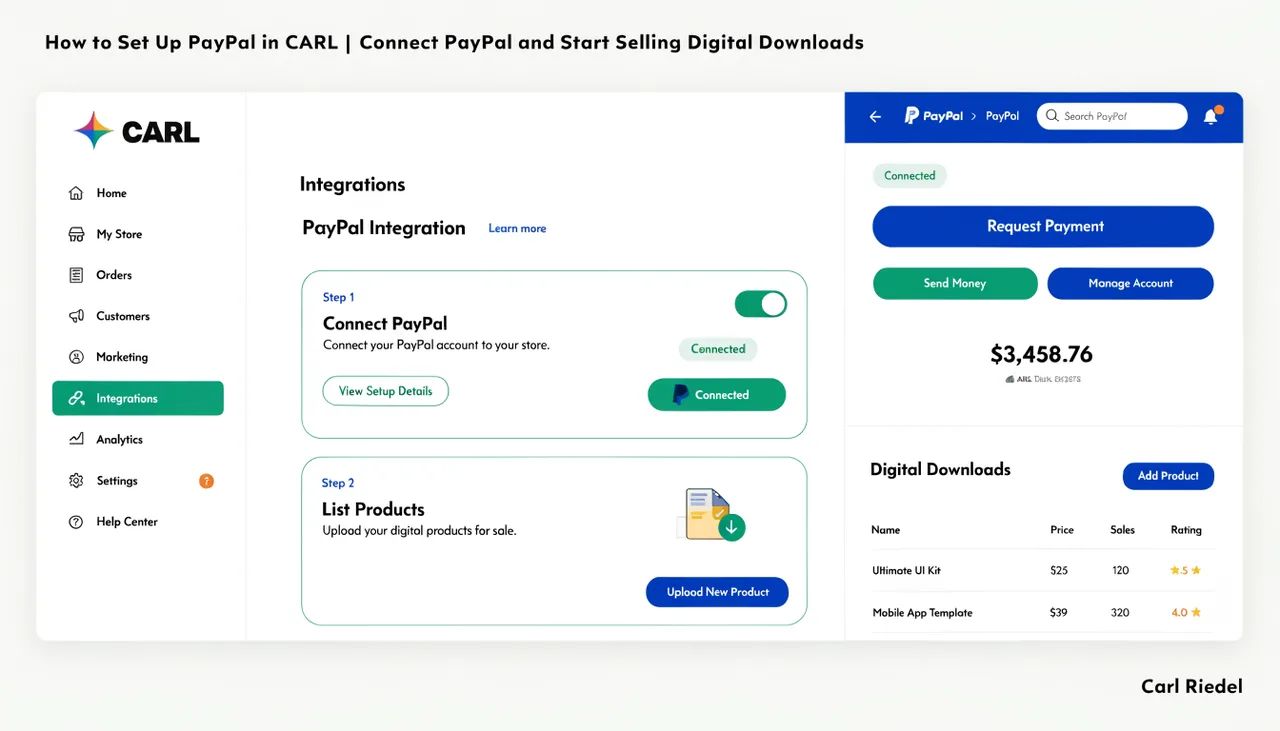
CARL's Downloads module uses PayPal to process payments. Setting it up requires a PayPal Business account, API credentials from the PayPal developer dashboard, and a few minutes in CARL's settings panel. Once it's connected, the entire purchase-to-delivery flow runs automatically without any third-party storefront involved.
What You Need Before You Start
You need a PayPal Business account. A personal PayPal account won't give you access to the API credentials CARL requires. If you don't have a Business account yet, upgrading from a personal account is straightforward inside PayPal's account settings and doesn't require a new email address or a new account.
You also need access to the PayPal Developer Dashboard at developer.paypal.com. This is where you create the app that generates your API credentials and where you register your webhook URL. Both steps happen here before you touch anything in CARL.
Creating Your PayPal App
In the PayPal Developer Dashboard, navigate to My Apps and Credentials. Create a new app under your Business account. Give it a name that identifies it as your CARL install, something like your domain name, so it's easy to find later. Once the app is created, PayPal provides a Client ID and a Secret Key.
These are the credentials you'll paste into CARL's settings panel.
PayPal provides both Sandbox and Live credentials. Sandbox credentials are for testing: payments go through a simulated environment, and no real money moves. Live credentials connect to real PayPal accounts and process real payments. Start with Sandbox to verify the full purchase flow works correctly, then switch to Live credentials when you're ready to accept real payments.
Entering Your Credentials in CARL
In CARL's admin panel, go to Settings and find the PayPal configuration section. Enter your Client ID and Secret Key from the PayPal Developer Dashboard. Select whether you're running in Sandbox or Live mode to match the credentials you've entered. Save the settings.
CARL stores these credentials in the database and uses them to verify incoming webhook notifications against PayPal's API. Keep them private. They're not exposed in any generated page file, but you should treat them with the same care as any other API key.
Registering the Webhook URL
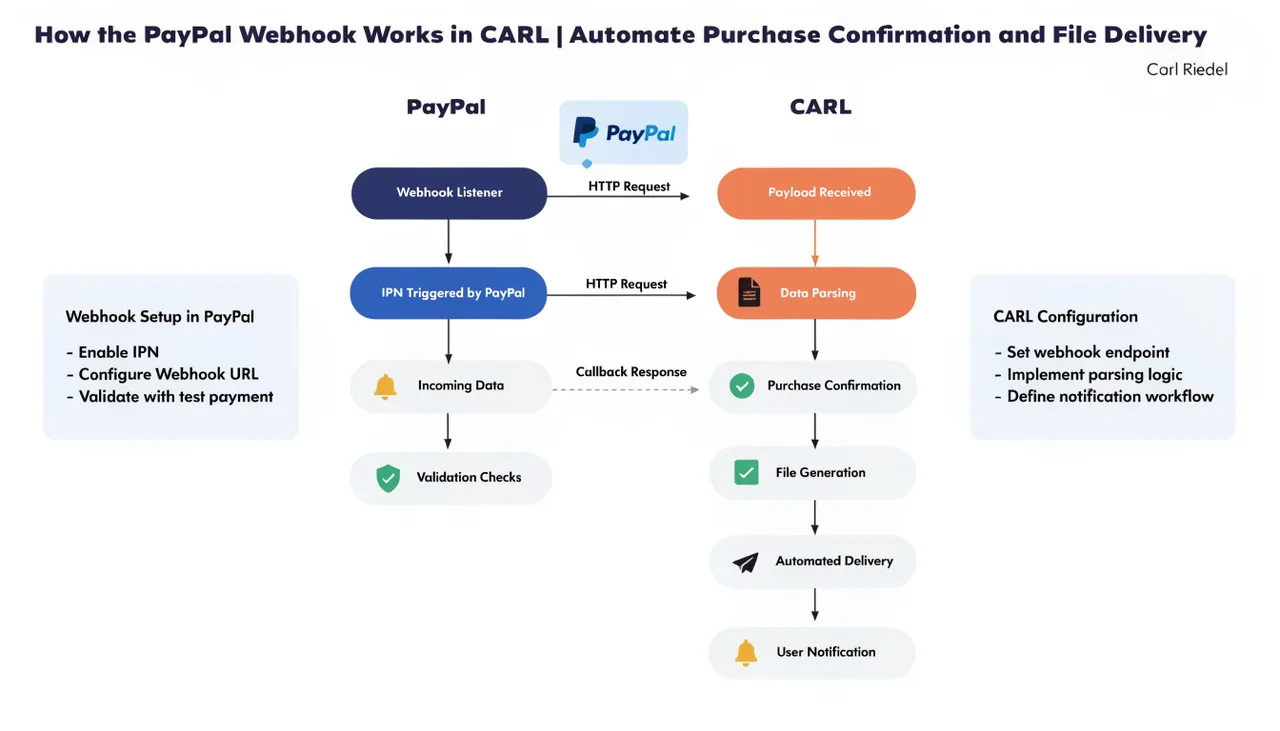
Back in the PayPal Developer Dashboard, find the Webhooks section for your app. Add a new webhook and enter the endpoint URL from CARL's settings panel. This is the URL PayPal will post payment notifications to when a purchase is completed.
Select the payment completion event types you want PayPal to notify you about. For CARL's Downloads module, you need, at minimum, the completed payment event so CARL knows when a purchase has been confirmed. Save the webhook in PayPal's dashboard. From this point, completed payments will automatically trigger a notification to your CARL install.
Testing the Connection
With Sandbox credentials active, use PayPal's test buyer accounts to complete a test purchase on one of your product pages. Walk through the full flow: click the buy button, complete the PayPal checkout, confirm the purchase, check that the download email arrives, verify the download link works.
If every step completes correctly, the integration is working.
Once you've confirmed the Sandbox flow works end-to-end, switch CARL's settings to Live mode, update to your Live credentials, and update the webhook URL in the PayPal Developer Dashboard to point to your live endpoint. Then you're ready to take real payments. For a full picture of what happens after a payment is confirmed, see How the PayPal webhook works in CARL.