How to Create a Product Page for a Digital Download
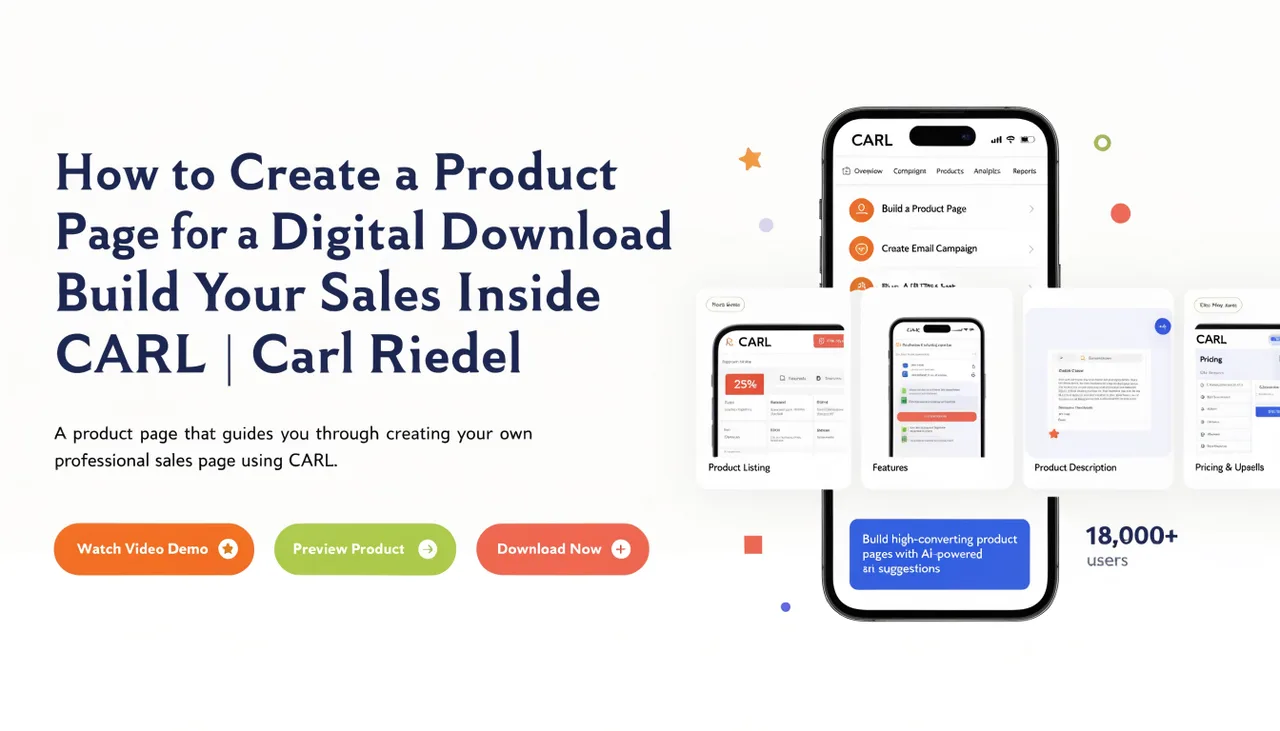
Every digital product you sell through CARL needs its own page on your site. That page does two jobs: it sells the product to visitors who land there, and it displays the PayPal buy button that starts the purchase flow. Both happen in CARL's page editor, with the Downloads module's product renderer handling the technical side while you focus on the copy.
Set Up the Product in the Downloads Module First
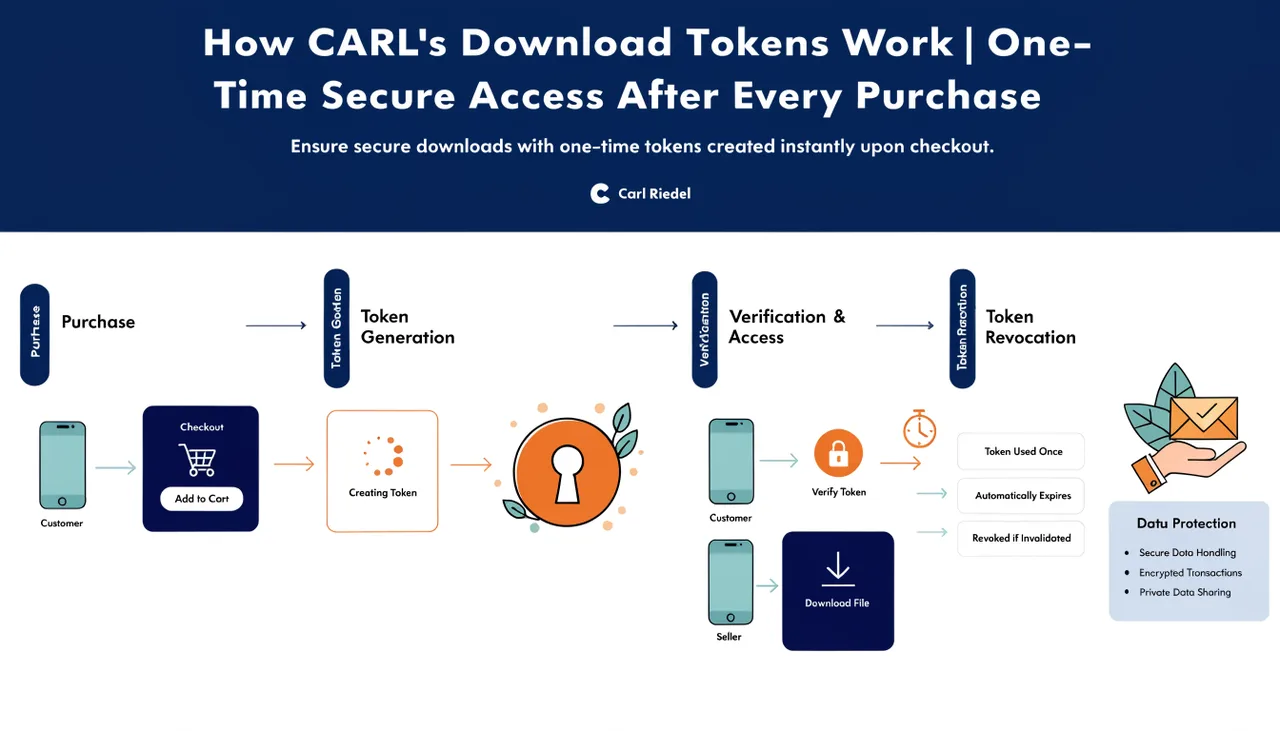
Before you create the page, the product needs to exist in CARL's Downloads module. Go to Downloads in the admin panel, add a new product, and fill in the details: the product name, price, currency, the file you're selling, and the token settings that control how long the download link remains valid after purchase. Save the product record. CARL assigns it an ID that the product renderer uses to pull the buy button and product data onto the page.
Getting the product set up first means you have everything you need when you open the page editor. You won't need to switch back and forth between the Downloads module and the page editor while you're writing.
Creating the Page
Create a new page in CARL the same way you'd create any page. Set the slug and directory to something clean and descriptive: the product name works well as a slug. Choose the template that fits your sales page layout. Fill in the title, H1, meta description, and Open Graph fields with copy that reflects what you're selling and who it's for.
The content field is where you write the sales copy: what the product is, what's in it, who it's for, what problem it solves. Write this as you would any page on your site. The buy button gets added separately through the product renderer shortcode, so you don't need to manually build any payment markup.
Adding the Buy Button
CARL's Downloads module includes a product renderer that automatically renders the PayPal buy button and any associated product details. In the content field, place the renderer shortcode where you want the buy button to appear, typically after the main sales copy and before any closing content. When CARL generates the page, it replaces the shortcode with the fully rendered buy button tied to your product record.
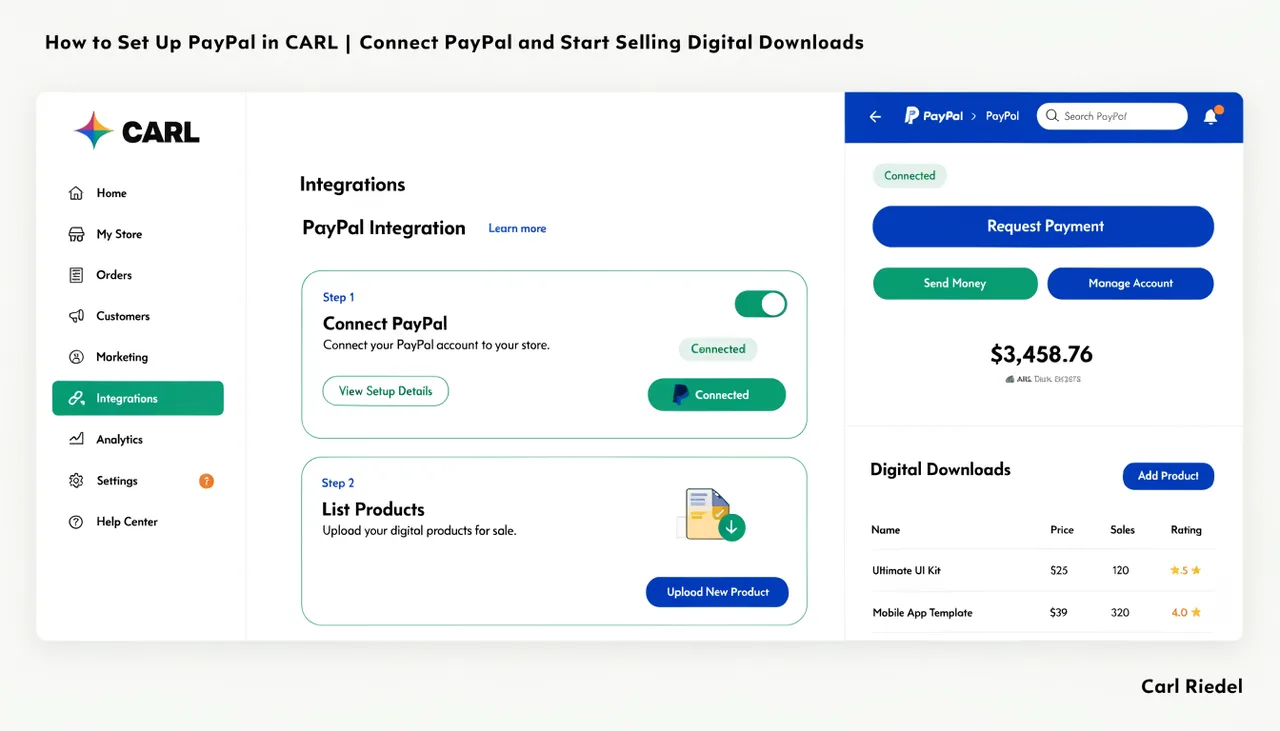
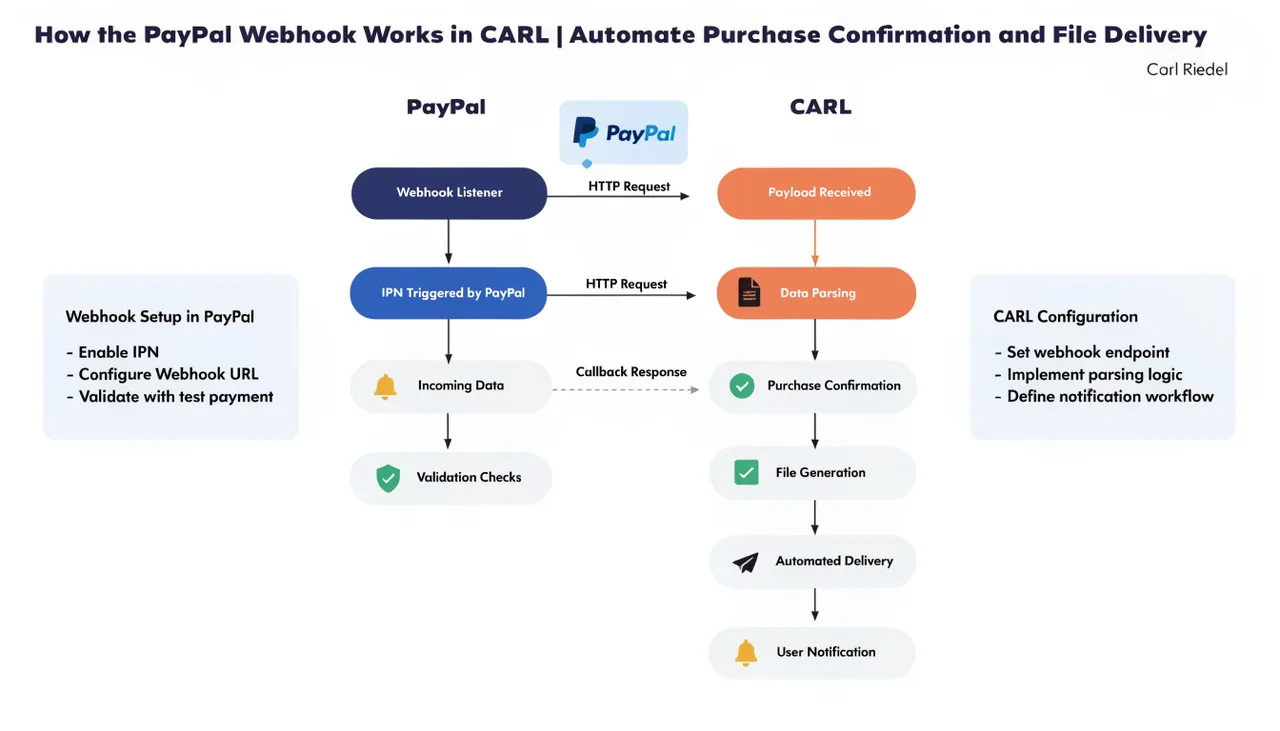
The button uses the PayPal credentials you configured in CARL's PayPal settings. When a visitor clicks it, PayPal's native checkout opens. When the payment completes, the webhook fires, the purchase is confirmed, and the buyer receives their download link by email. You don't need to add any payment logic to the page itself.
Generating and Reviewing the Page
Once the content is written and the renderer shortcode is in place, use CARL's preview to check the page before generating it. Confirm the buy button renders correctly, the layout looks right, and the sales copy reads the way you intended. When you're satisfied, click Generate. The page goes to disk at the URL you specified and is immediately accessible.
Visit the live URL and run a test purchase using your PayPal Sandbox credentials to confirm the full flow works: button click, PayPal checkout, payment confirmation, download email, working download link. Once that passes, the page is ready for real buyers. For a complete overview of how all the pieces fit together, see How selling digital downloads works in CARL.