How to Configure CARL's General Settings
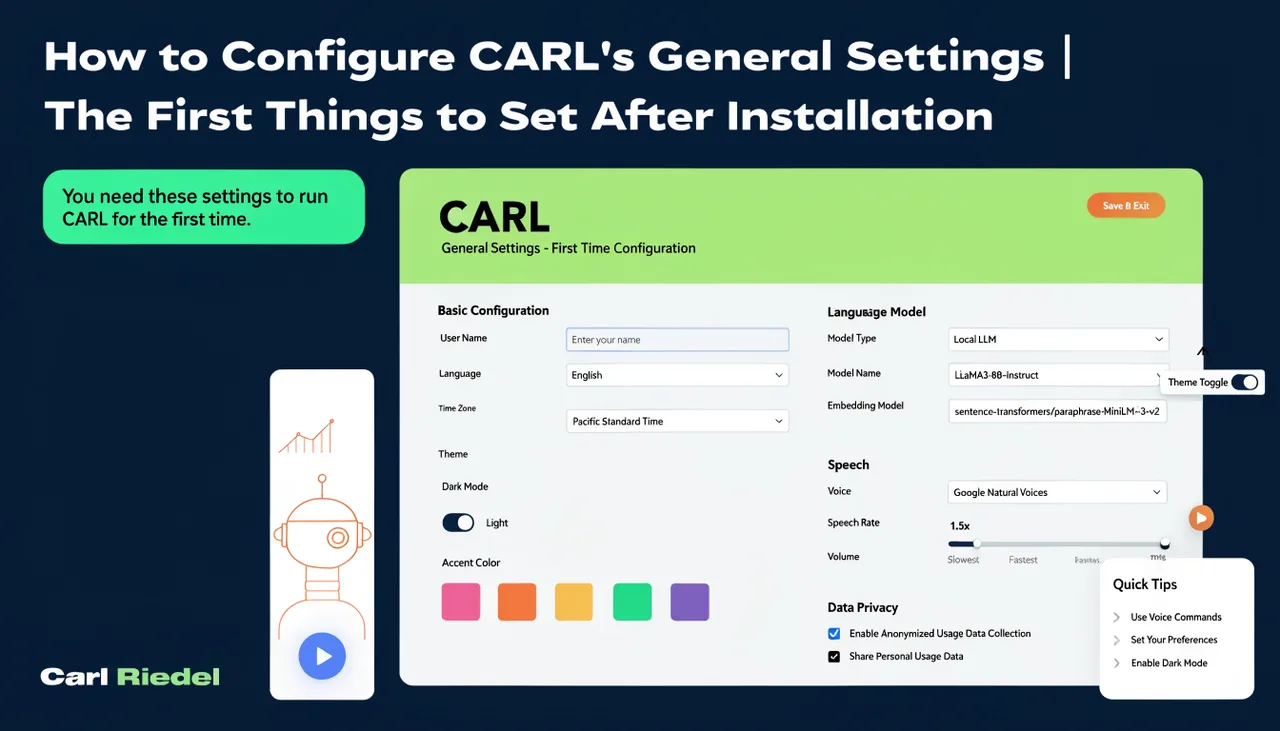
The first thing to do after logging into CARL for the first time is to open Settings and work through each tab. The General tab contains the most critical settings on the entire install: get these right before you publish a single page. Getting them wrong after pages are already live creates SEO problems that take real effort to clean up.
Site Name
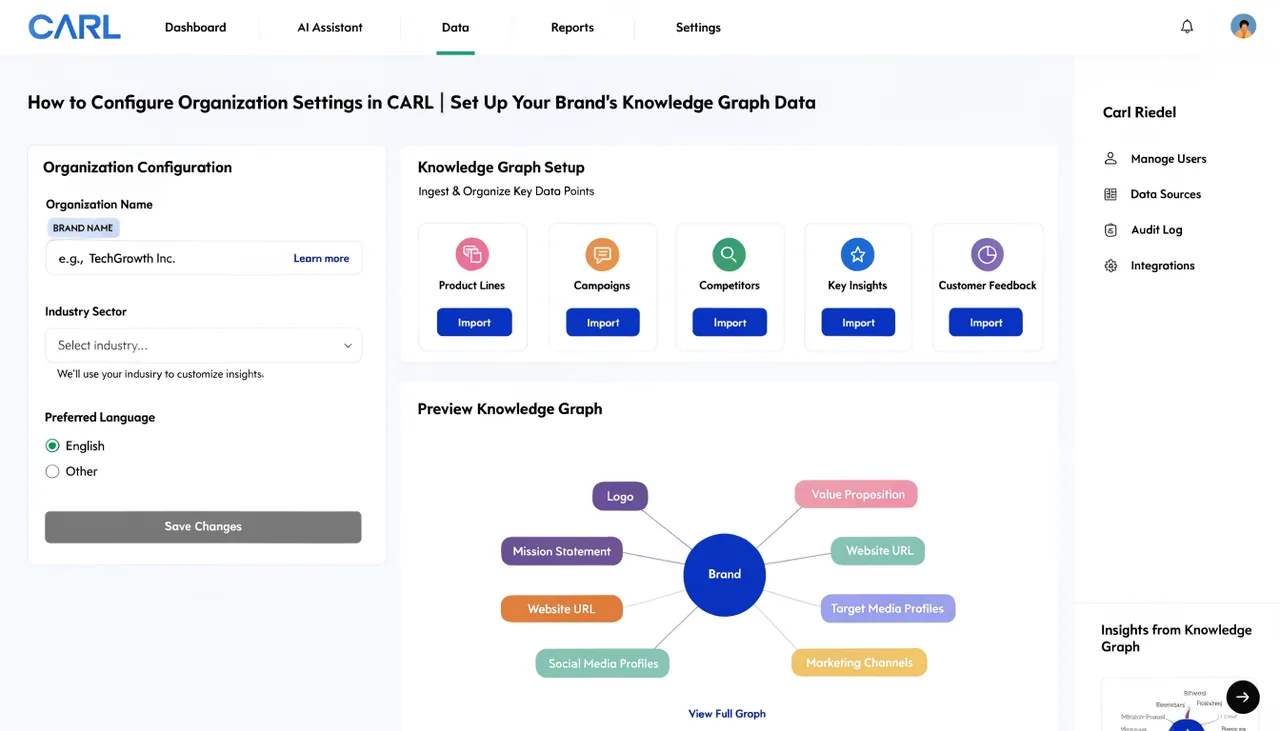
The Site Name field is your website or brand name. CARL uses it in browser tabs, schema markup, and throughout the admin interface. Enter it exactly as you want it to appear publicly. This is not a URL, just the name: "Carl Riedel", "The Takeaway Tuesday", "Acme Plumbing Services", whatever your brand is called.
Base URL
The Base URL is the single most critical setting in CARL. It must be your site's exact root URL with no trailing slash and with the correct HTTPS protocol. The correct format is https://yoursite.com. Not https://yoursite.com/ with a trailing slash. Not http://yoursite.com with HTTP instead of HTTPS.
CARL uses the Base URL to build every canonical URL, every sitemap entry, and every schema link on your site. A wrong Base URL means every SEO signal on every page points to the wrong address. Set it correctly once, click Save All Settings, and don't change it after pages are published.
Admin Recovery Key
The Recovery Key is your emergency access key. If you ever forget your admin password, CARL's Forgot Password page asks for this key before allowing a reset. Set it immediately after your first login, before you need it. Write it down and store it in a password manager. If you lose both your password and your Recovery Key, recovering admin access requires direct access to the database through your hosting provider.
Favicon
The favicon section on the General tab lets you upload your site icon directly through the admin. Click Choose File, select a 32x32 or 64x64-pixel PNG or ICO file, then click Upload Favicon. CARL saves it and automatically injects it into every page. After uploading, use the Regen All button on the Pages list to update all existing published pages with the new favicon tag.
Saving Your Settings
Click Save All Settings before moving to any other tab. CARL doesn't auto-save settings across tabs, so changes on the General tab must be saved explicitly before you navigate elsewhere. Make it a habit: change something, save, then continue.
The Other Settings Tabs
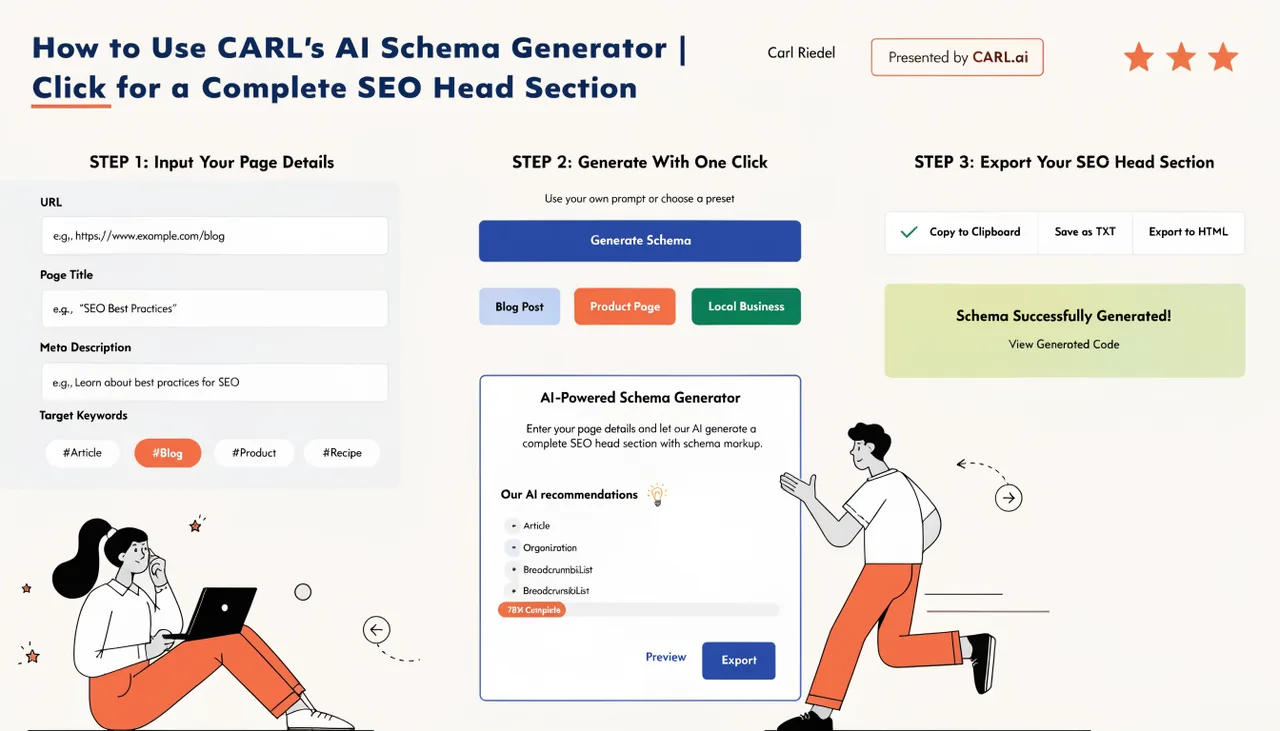
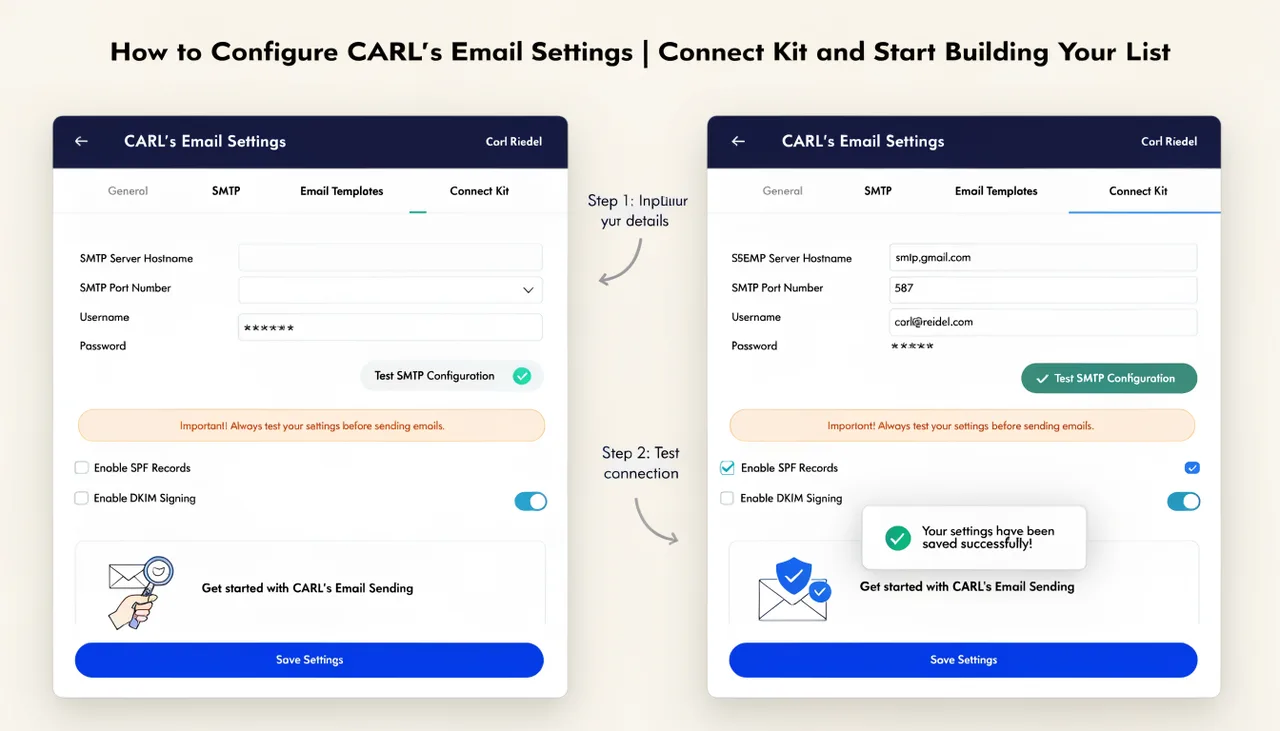
The General tab is the starting point, but the other tabs matter too. The Organization tab powers your Organization JSON-LD schema and should be filled in completely. The System tab contains the Admin Timezone and Cron Secret Key needed for scheduled publishing. The AI Settings tab is where you enter your Claude API key, which enables the Generate Schema button in the page editor. The Subscribers tab connects CARL to your Kit account if you're building an email list.
For full details on the AI settings that power schema generation, see How to use CARL's AI Schema Generator. For email integration, see How CARL integrates with Kit.