How to Configure CARL's Email Settings
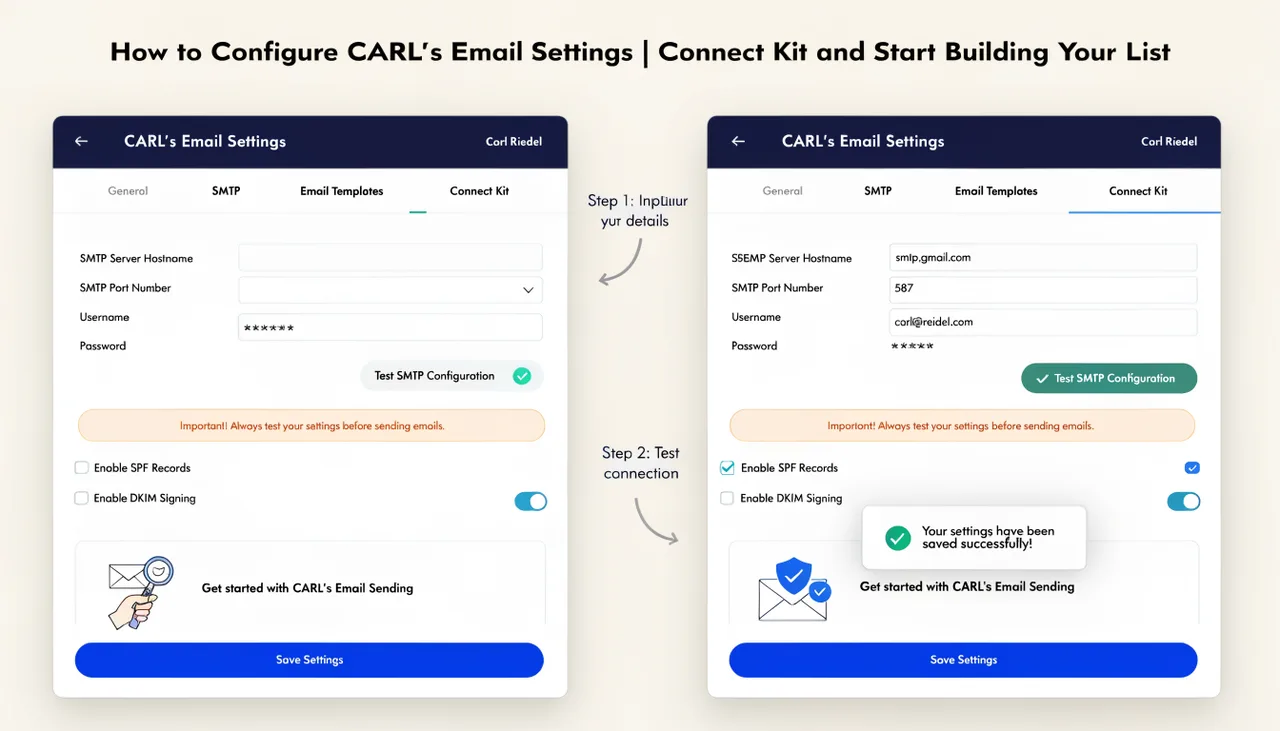
CARL's email settings connect your install to Kit (ConvertKit), the email platform CARL integrates with natively. Once connected, every subscriber who signs up through a CARL signup form is added directly to your Kit account. The setup takes about five minutes and only needs to be done once.
Where to Find the Email Settings
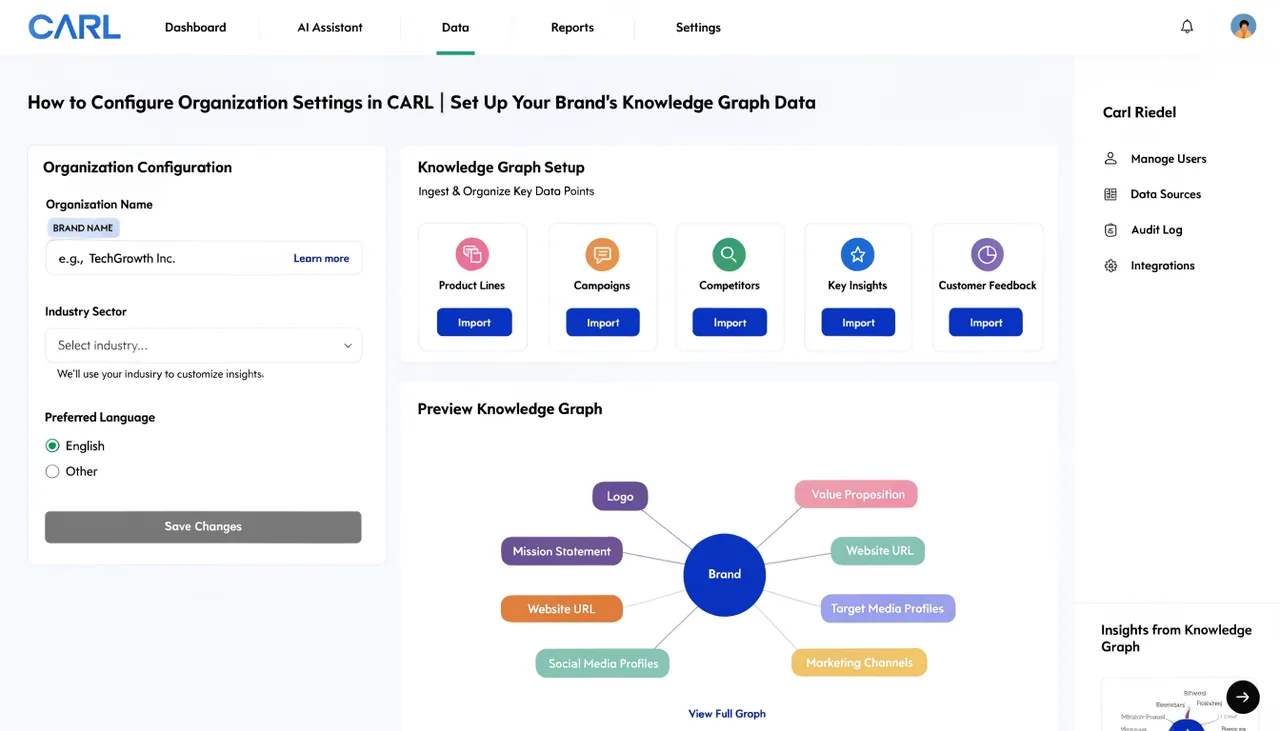
In the CARL admin panel, go to Settings and click the Subscribers tab. This is where all Kit integration settings live. You'll need your Kit API key and the form ID of the form you want subscribers added to. Have your Kit account open in a separate browser tab before you start.
Getting Your Kit API Key
Log in to your Kit account at app.kit.com. Go to Settings> Developer Settings, then copy your API key. Back in CARL, paste it into the Kit API Key field. This key authorizes CARL to communicate with your Kit account and add subscribers on your behalf.
Finding Your Kit Form ID
In Kit, go to Grow, then Landing Pages and Forms. Click the form you want CARL to subscribe people to. Look at the URL in your browser address bar: the number in the URL is your Form ID. Copy that number and paste it into the Default Kit Form ID field in CARL's Subscribers settings.
The Default Kit Form ID is the form CARL uses when a visitor signs up through your site's signup form. If you have multiple forms for different lead magnets or sections of your site, the default applies across the board. Individual signup form embeds can reference specific form IDs if needed.
Customizing the Signup Form Wording
The Subscribers tab also lets you customize the text displayed on CARL's native signup form: the heading, description, button label, and confirmation message shown after someone subscribes. Update these to match your brand voice before the form goes live. The default text is functional but generic. Your subscribers will read it, so write it like you mean it.
Saving and Testing
Click Save All Settings after entering your API key and Form ID. To confirm the connection is working, go to one of your published pages that includes a signup form, enter a test email address, and submit. Check your Kit account to confirm the subscriber was added to the correct form. If the subscriber doesn't appear, go back to the Subscribers tab and verify the API key and Form ID are entered correctly with no extra spaces.
If You're Not Using Kit Yet
You can skip the Subscribers tab during initial setup and return to it when you're ready to connect your email platform. CARL functions fully without Kit integration. The signup form simply won't sync subscribers to an external list until the API key is in place. For more details on how CARL's subscriber system works and how the native signup form connects to your pages, see How CARL integrates with Kit.