How to Use CARL's AI Schema Generator
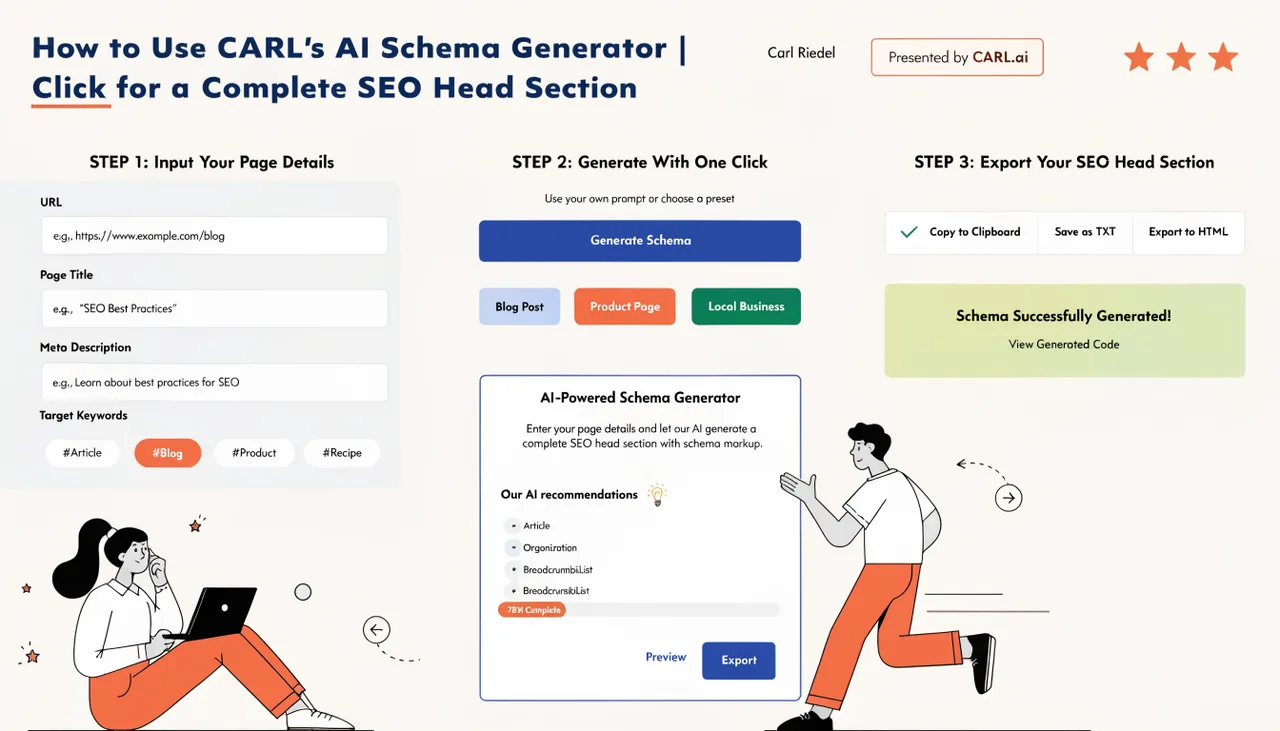
The AI Schema Generator is one of CARL's most powerful features. Click one button, and Claude reads your page content, writes an optimized meta description, generates a complete Article JSON-LD schema with Thing entities, produces Open Graph tags, Twitter Card tags, a keywords tag, and a canonical URL tag, then delivers the entire block directly into the Head Injection field. One click covers everything that belongs in your page's,
Setting Up Your Claude API Key
The AI Schema Generator runs on Claude, Anthropic's AI. To use it, you need to add a Claude API key to CARL's settings. Go to console.anthropic.com, create a free Anthropic account if you don't have one, navigate to API Keys, and click Create Key. Name it something recognizable like "CARL" and copy the key. In CARL, go to Settings, click the AI Settings tab, paste the key into the Claude API Key field, and click Save All Settings.
The API key starts with sk-ant-. You're billed directly by Anthropic for usage, not through CARL. The cost is a fraction of a cent per page. Most users spend under $1 per month on API costs, even running active content sites.
Before You Click Generate Schema
The Generate Schema button works best when your page is as complete as possible before you run it. Write your full page content first. Set your OG Image using the OG/TW button in the Quick Image Insert panel: Claude includes the image URL in the Open Graph and Twitter Card tags it generates. Fill in your OG Description, a one to two-sentence summary of the page for social sharing. Add any SameAs URLs in the SameAs field, one per line: your social profiles, relevant Wikipedia pages, or other authority sources that relate to the page topic. The more context Claude has, the better the output.
Running Generate Schema
Once your content is written and the OG fields are filled in, click the Generate Schema button. CARL sends your full page content, title, OG image URL, and SameAs URLs to Claude. Claude generates the complete head block, and CARL appends it automatically to the Head Injection field.
A green success message confirms the transfer. The whole process takes a few seconds.
After the schema lands in Head Injection, the Override Auto-Schema checkbox ticks itself automatically. Leave it ticked.
This suppresses CARL's built-in schema generation, so there's no conflict between the AI-generated block and any default schema CARL would otherwise output. This is the correct state, and you don't need to change it.
After Generate Schema Runs
Click Save Draft immediately after the schema is generated. The Head Injection content is part of the page record and needs to be saved before you publish or navigate away. If you close the editor without saving, the generated schema is lost, and you'll need to run it again.
Once saved, click Save and Generate File to publish the page. The complete head block, including the meta description, schema, Open Graph tags, Twitter Cards, keywords, and canonical tag, gets baked into the published PHP file. Every visitor and every crawler gets the full structured data package on every page request, served from a static file with no runtime cost.
Schema Presets for Different Page Types
The default Generate Schema instructions produce the Article schema, which is correct for most content pages. For pages that need a different schema type, CARL's Schema Preset system lets you create named sets of instructions for different content types.
An FAQ page preset that generates FAQPage schema, a video page preset that generates VideoObject schema, a product review preset that generates Review schema: you create these in Settings under AI Settings, then select the relevant preset from the dropdown in the page editor before clicking Generate Schema.
For pages that need schema types the AI generator doesn't cover, write the JSON-LD manually and paste it into the Head Injection field. The Head Injection field accepts any valid HTML or script content and writes it verbatim into the published file's section.