How CARL Stores Pages on Your Server
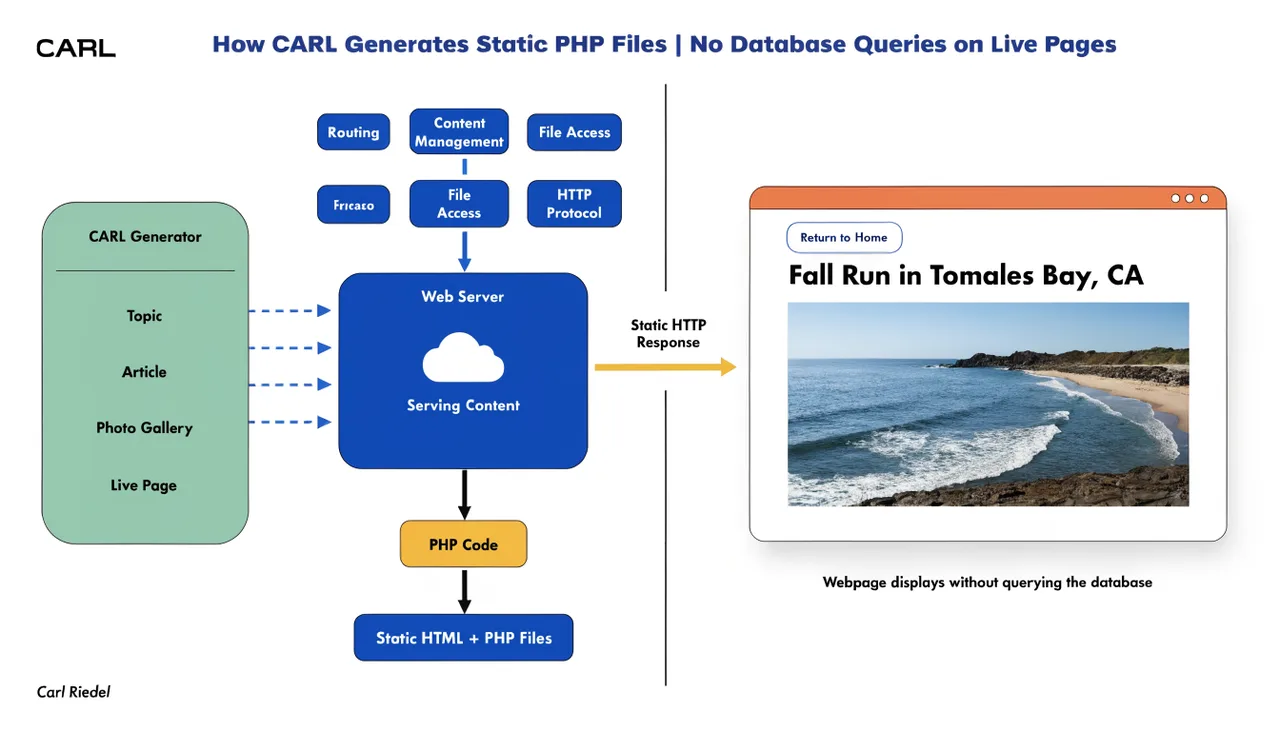
Most website platforms store your content in their databases, on their servers, and within their infrastructure. You get a login, a dashboard, and a URL. But the actual files? Those belong to the platform. CARL does the opposite. Every page you publish is a real file on your server, in your web root, under your control.
That's not a marketing claim. It's a direct consequence of how CARL generates pages. Understanding where those files live and how they're organized helps you manage your site with confidence.
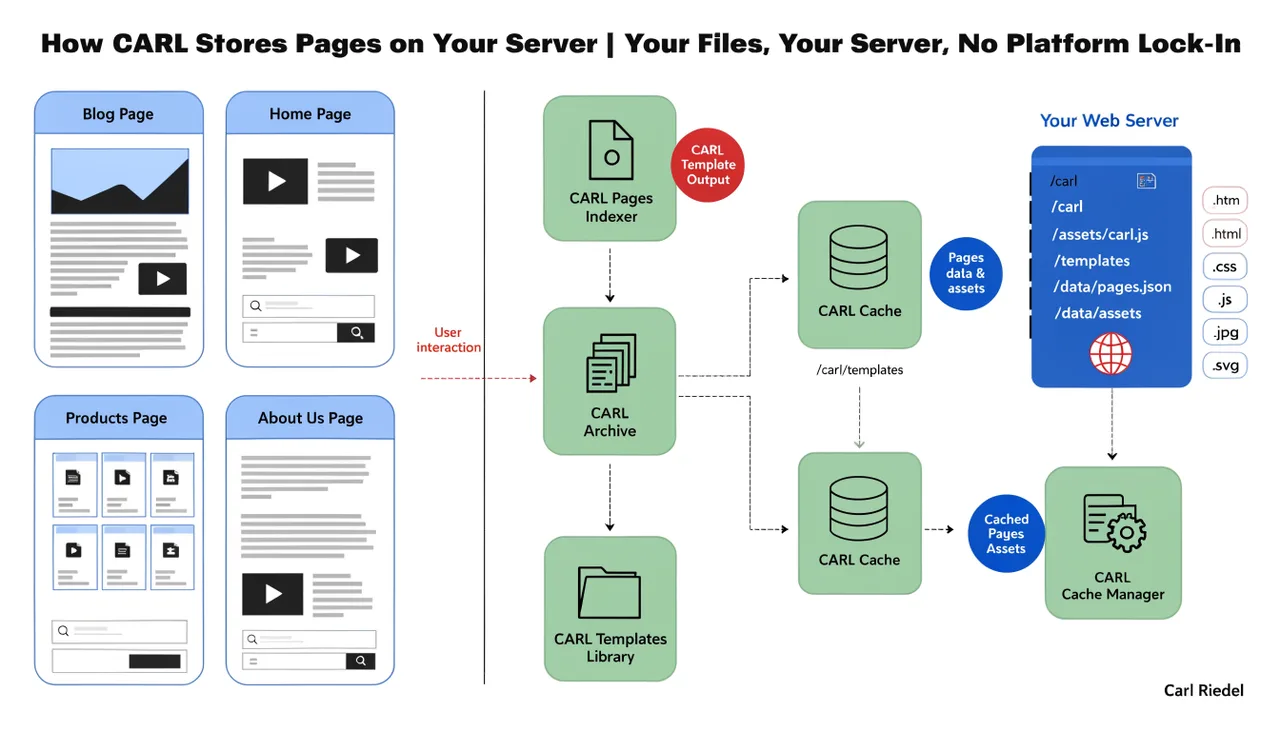
Your Web Root Is the Filing Cabinet
On a standard cPanel hosting account, your public web root is public_html. That's the folder your domain points to. When CARL generates a page, it writes the finished file into that folder at the exact path defined by the page's directory and slug settings.
There's no hidden layer, no abstraction, no proprietary file format. Open your cPanel File Manager, browse to the public_html directory, and every published CARL page is right there as a .php file. You can read it, download it, copy it, or move it just like any other file on your server.
How the Directory Structure Works
CARL mirrors your page's directory and slug settings directly into the file path. If you set a page's directory to wiki/architecture and its slug to how-carl-stores-pages-on-your-server, CARL creates the necessary folders and writes the file to:
public_html/wiki/architecture/how-carl-stores-pages-on-your-server.php
The URL your visitors use maps directly to that file path. No routing table, no URL rewriting required for page delivery. The structure you see in your File Manager is the structure your visitors navigate.
Subdirectories Are Created Automatically
You don't need to create folders manually before publishing a page into a new directory. CARL checks whether the target directory exists and creates it if it doesn't. Set the directory field, publish the page, and the folder structure appears on disk.
This makes building out nested content structures, such as a wiki silo, straightforward. Create the pages in the editor with the correct directory settings, and CARL handles the folder creation as part of the publish process.
The Admin Panel Is Separate
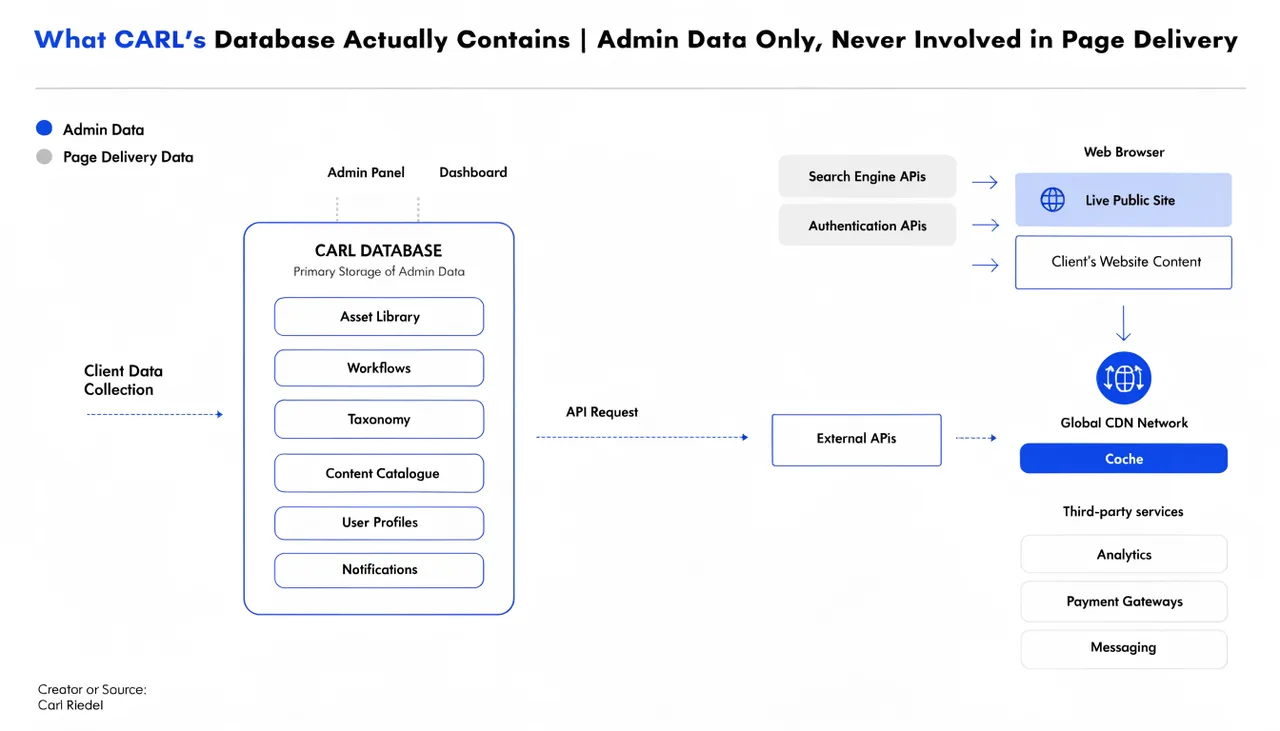
It's worth being clear about what lives where. Your published pages live in public_html, accessible to the world. The CARL admin panel lives in public_html/admin, protected by login. The database holds your page records, settings, and module data, but it's never involved in serving a live page to a visitor.
These three layers are deliberately separate. The admin panel can go offline, and your published pages keep working. The database can be unavailable, and your published pages keep working. The files on disk are self-contained and independent of everything else.
What This Means If You Ever Leave
This is one of the most important practical consequences of how CARL stores pages. If you ever decide to move to a different host, switch to a different system, or simply shut down the admin panel, every page you've ever published keeps working exactly as it did before. The files are on your server. Copy them to a new host, and they work there too.
There is no export process, no data migration, no platform asking you to pay for access to your own content. Your site is already a collection of files. You already own them.
Finding Your Files in cPanel
If you want to verify where a specific page lives, log in to cPanel and open the File Manager. Navigate to public_html and browse to the directory matching the page's directory setting. The file will be there with the page's slug as the filename and .php as the extension.
You can also check the generated path directly in the CARL admin. Open any page for editing, and the stored file path is shown in the page record. That path is what CARL wrote to disk when you last published or regenerated the page.
A Note on Regeneration
If you rename a page's slug or move it to a different directory, CARL writes the new file at the new path. The old file at the old path is not automatically deleted. It's good practice to manually remove the old file via cPanel File Manager after moving a page, and to set up a redirect from the old URL to the new one so existing links and any indexed URLs don't land on a dead page.
The bulk regenerate tool handles the rebuild but not the cleanup of old paths. That part stays in your hands, which is exactly where it should be.